10GbE and Jumbo Packets…

For the longest time, I was painfully aware that I was not utilising my 10GbE network switches and NICs to its fullest.

Having to finally sit down, build, test and optimise a software firewall using 10GbE interfaces for some organisation I volunteer at and therefore having to test it in my home lab, I finally was “forced” to sit down and “optimise” my local home lab.

An iperf3 test was not showing good numbers – bouncing around the ~8Gbps mark on a 10Gbps network.

Without fluffing around with kernel and IP stack tweaks, I was aware the easiest way to eke out better performance was to increase the MTU…

Continue reading

Crashing Ubuntu Desktop “System Settings”…

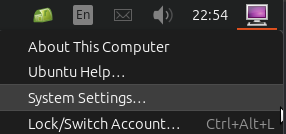
Attempting to get to the “System Settings” “control panel” of Ubuntu desktop on my Server 24.04 LTS installation, I discovered clicking on the “System Settings…” option from the “desktop” bottom (typically top-right corner) did absolutely squat.

After rooting around online, I finally realised that I had been over-zealous in “cleaning out”/uninstalling unneeded apps and libraries – or so I thought was “unneeded”.

Turns out that the audio libraries, even on an “audio-less” server, are still required!

A quick apt reinstall ubuntu-desktop-minimal fixed things right up!

Exporting Clips Off A Dahua NVR Part Trois

New NVR, (Re)new(ed) Problems…

I was trying to find out why I could not see some export controls from the NVR’s web interface, similar to this

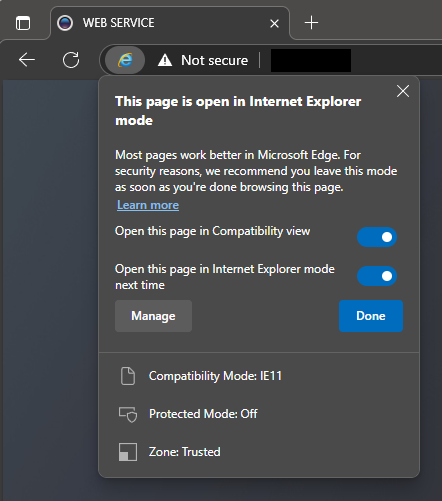
Turns out that, for now, I still need to use “IE Mode” in Microsoft Edge – but as the title posits, it ain’t easy (or at least, it is not just a “button click” away). Microsoft has buried Internet Explorer waaay below 6ft underground…

Microsoft Edge in “Internet Explorer mode”

Just in case that Microsoft link breaks, here is the rundown:

  • in the address bar for Microsoft Edge, type edge://settings/defaultbrowser and then click Enter
  • slide the Allow sites to be reloaded in Internet Explorer toggle to ON
  • restart Microsoft Edge (cue the wind down your window, wind up your window joke from the 90’s)
  • navigate to the website you want to view in Internet Explorer mode
  • click the three dots in the upper right corner of the browser window
  • select Reload in Internet Explorer Mode


Buffer Bloat…

After then nth time of suffering stuttering during a conference call on my wired connection, I stumbled on to the (common-but-undiagnosed) issue of “buffer bloat” (or “bufferbloat” – whatever spacing floats your boat).

The linked article certainly opened by eyes to the issue via a linked test site, with clear “before” and “after” improvements…

For my own (future) reference in implementing such fixes on pfSense…

Continue reading

Xiaomi Mi 13 Pro Boot Loop…

I had the misfortune of experiencing an “incurable” (or so I thought) boot loop that forced me to send for a replacement (near its end of its 2-year warranty) from Xiaomi late last year…

That meant I lost all my latest photos and messages not already backed up…

Another Mi 13 Pro I had on hand experienced the same boot loop.

In frustration and not wanting to lose any information, I searched the Internet to see what could be done…

Apparently, there was a potential fix – I tried it and it worked for me!

YMMV

MIUI HyperOS 2 – Now sucking twice as much as HyperOS 1

So, accidentally updating my Xiaomi Mi 13 Pro firmware, I got saddled with Xiaomi’s latest “HyperOS 2″… Now sucking twice as much as HyperOS 1…

Logging my own fixes for “quality of life” (or otherwise, preventing the murder of some Xiaomi OS designer/engineer):

  • Fixing “Home” button long press:
    • use “Hidden Settings“, search for “button” and select “Button navigation” (com.android.settings.Settings$PowerMenuSettingsActivity)
  • Getting Touchpal to work:
    • change system font to “default”

Headless Servers, Dancing KVM-Bewitched Screens…

When using a headless server, certain operating systems’ window managers don’t handle a lack of attached display properly, often ending up with issues when attempting to remotely mirror/access session 0. Some workarounds exist, including “faking a display“, but that has serious side-effects when actually hooking up a real display or when working with some software that could add virtual displays (making that “fake display” suddenly part of a multi-monitor setup which you can’t see).

Similarly, most window managers flail (not fail) spectacularly when one or more displays is/are switched away from it (when using a KVM that does not have EDID emulation), resulting in screen resizing, application window movements et. al., and switching it back fails to relocate certain windows and UI elements back to the previous location/size/state. Whereas this point may be more an issue with combination of OS and application, it is still an irritating issue for KVM users.

The simple solution I have found is to always use a HDMI EDID emulator with pass-through at the output display port/s, meaning that:

  1. for the former use case (of headless servers), the machine always thinks a display is attached and session 0 will be on that/those “display/s”, with the ability to just plug my 13.3″ portable monitor* via HDMI (and still stay sane)
  2. and for the latter use case, I can switch away one or more displays and the machine still thinks the display/s are working – ergo no “dancing” windows

This has certain limitations though:

  • unless the pass-through copies the EDID of the sink (i.e. display), the output (i.e. resolution, refresh rate, audio capabilities) will be limited to the EDID “mode”/capabilities of the HDMI emulator
    • some emulators fail to copy the sink’s EDID after starting/initializing (instead using some preset), so for those oddballs, you will need to ensure you start up the system (i.e. start providing power to the pass-through emulator) with the display “attached” (e.g. KVM switched to machine being started)
  • “unusual” modes (like wide and ultra-wide screens like the my 5120×1440@120/144Hz Prism X490 Pro* and Asus XG49WCR* with high refresh rates) or attempting to use HDR and/or VRR features would fail, with HDMI sync limited (usually to UWQHD i.e. 3440x1440p @ 30Hz with no audio)

This site DOES say the stuff we USE, not the stuff we wanna sell. :)

    • I am guessing here, but
      • maybe the HDMI pass-through emulators just cannot handle bandwidth required and therefore will have to sync at lower rates/modes
      • maybe the HDMI emulator’s EDID table does not have the modes in question – not sure if reprogramming the EDID one would work

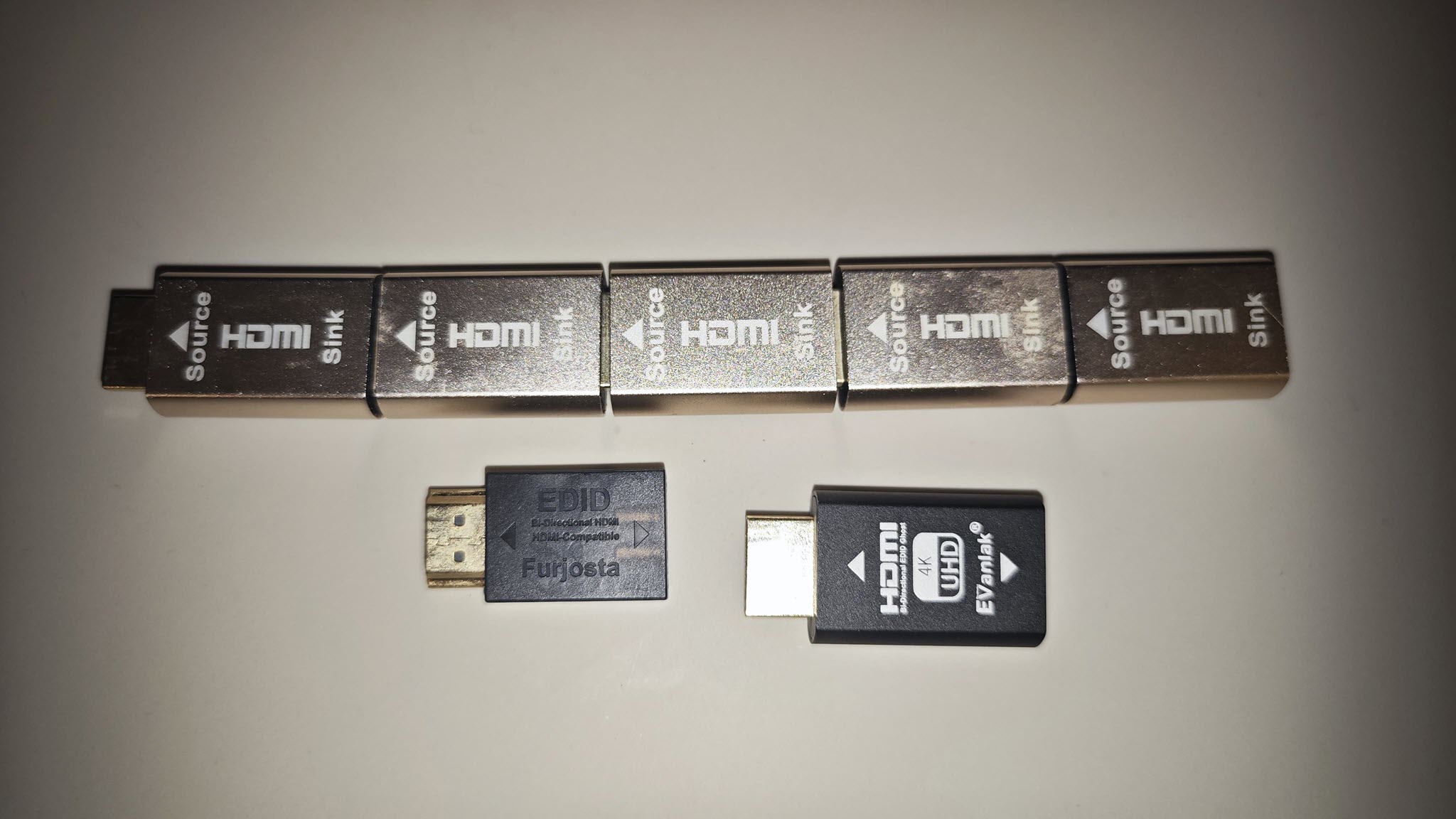
For easy reference (and purchase, if you will), I use several of these:


*NOTE: This is an affiliate link, so I may get some commission, but at no additional cost to purchasers purchasing through this link. For Amazon Affiliate links, as an Amazon Associate, I earn from qualifying purchases.

pfSense and Empty Packages…

I ran across this issue of having the pfSense’s “Available Packages” under “System” > “Package Manager” show up empty.

I “stupidly” followed the troubleshooting steps, and discovered that everything was back at base release (i.e. version x.y.0), and had to (fortunately, successfully) update both pfSense and packages back to latest.

Several different Netgate forums pointed to DNS issues, but I confirmed that I could resolve locally (i.e. my DNS resolver was “listening” correctly on localhost/127.0.0.1 and pkg-static info -x pfSense, pfSense-repoc and host pkg01-atx.netgate.com all worked without issue).

So, it appeared that two fixes were offered:

  1. just hit “Save” on the “System” > “Update” > “Updates Settings” page (without changing anything), or
  2. if you don’t use IPv6, ensure to set your WAN interface “IPv6 Configuration Type” to “DHCP6” instead of “None” (under “Interfaces” > “WAN”)

I tried #2 and have pulled the repository but reverted the change (I hate setting something I know I’m not going to use), so will update later on if the issue reoccurs and I can test #1.

Secure Boot Shim-anigans Ahoy!

So, I had to purchase a new laptop for someone, and as per usual, it came with the entire SSD capacity allocated, which I still feel is bad practice – specifically ensuring there is unallocated space that the drive firmware knows about, assuming TRIM is supported by both OS, controller and drive, (which, AFAIK, all “modern” OS and hardware do) to improve the drive’s wear-leveling ability and thereby extending the SSD’s lifespan.

To do so, I use a “rule of thumb” to leave ~20% of unpartitioned space – at the “end” of the disk (from a “logical” view of the partition table, regardless MBR or GPT). Usually, I simply use a “multi-boot” USB stick created using YUMI or Ventoy (the former now looking like a “wrapping” of the latter in its latest “exFAT” variant).

Aware of the shenanigans/rain dance required to make UEFI secure boot work from such bootloaders, like hundreds of other times (but never done for awhile), I simply (1) disabled CSM in BIOS, (2) enabled secure boot (and rebooted), (3) manually loaded the ENROLL_THIS_KEY_IN_MOKMANAGER.cer into the key store via BIOS from the prepared Ventoy USB disk…

I then confidently rebooted the laptop, pointing to the USB UEFI as the boot device, then ran headlong into the wall with a sickening SMACK. The wall was black, with only the words “Verifying shim SBAT data failed: Security Policy Violation” emblazoned across the top…

Attempting to fix this on this “new” laptop took me off on tangent, wasting nearly a half day trying to research and resolve… Hopefully this helps someone else with the “summary” below, assuming you have a working Linux system that can mount the USB device’s bootloader (i.e. EFI partition), since Windows cannot (without jumping through hoops)…

Continue reading