“Unrooting” WSL…

WSL starts as root user be default.

Here’s how to ensure it runs as a “non-root user” (assumedly already created), which you then have to su and/or sudo <something> to act as root:

  • either/and:
    • modify a shortcut or change Windows Terminal’s Profile to set the distribution (if required) and the user name, and starting in the user’s home directory:
      • wsl -d <distro> -u <user> -cd ~
    • edit /etc/wsl.conf to always start with a specific user:
      • [user]
        default=<user>

Simple! (Not!)

Upgrading WSL2 Ubuntu LTS 22.04 to LTS 24.04…

After fixing WSL networking issues, I had to upgrade the Ubuntu LTS instance… The sequence should have been:

  • apt update
  • apt upgrade -y
  • apt dist-update
  • lsb_release -a   # to confirm version before upgrade
  • do-release-upgrade
  • lsb_release -a   # to confirm version after upgrade

But, as per usual, I hit another issue attempting to upgrade (i.e. while running do-release-upgrade):

error: cannot list snaps: cannot communicate with server: Get "http://localhost/v2/snaps": dial unix /run/snapd.socket: connect: no such file or directory

A quick ‘net search brought up the point that snapd was not running…

Continue reading

Windows 11 Host Network Service (HNS) and Windows Subsystem for Linux (WSL)…

For the longest time, my Ubuntu LTS 22.04 on my (forced-to-be-update-to) Windows 11 (replete with other networking horrors) was not working properly – I could only access the Internet from within the WSL2 container when Windows Firewall was disabled.

Despite shenanigans like attempting to whitelist a whole plethora of executables:

  • C:\Windows\System32\vmcompute.exe
  • C:\Windows\System32\vmms.exe
  • C:\Windows\System32\vmwp.exe
  • C:\Windows\System32\wsl.exe
  • C:\Program Files\WSL\wsl.exe
  • C:\Program Files\WSL\wslservice.exe

Even attempting to whitelist the usual services suspects via C:\Windows\System32\svchost.exe like the following:

  • Host Network Service
  • Internet Connection Sharing (ICS)

All were to no avail. I could resolve domain names, but no traffic went out unless the host’s Windows Firewall was disabled.

I could not even see any blocked traffic from the logs, despite having the correct set up (tip: just use WFC‘s logging interface).

Searching ChatGPT and Perplexity sent me on various wild-goose chases, from changing WSL networking modes (NAT vs. “mirrored” in %USERPROFILE%/.wslconfig), to setting up dubious firewall rules referencing InterfaceAlias using New-NetFirewallRule (but which actual interface UUIDs change every boot). Continue reading

Malwarebytes fka BiniSoft Windows Firewall Control and Windows Defender Firewall with Advanced Security Interactions…

I used to swear by the very useful, but extremely complicated (and easy to break your OS if you get it wrong, but free) Comodo Internet Security suite, which included  Comodo Firewall…

Unfortunately, having been forced to upgrade to Windows 11 a few months back, replete with feature retardation, my trusty ol’ CIS 12.x no longer worked (properly), and I had to switch to the “plain ‘ol Windows Firewall” – which works great except for the rules and rules management. Working with the Advanced Firewall console UI is a nightmare, and not being able to quickly allow something that was blocked renders the plain ‘ol Windows Firewall unusable.

I may have gotten the following versions and timelines wrong: When I initially tested Windows 7, I knew ZoneAlarm 7.x was not compatible (then), I actually looked at, and bought, BiniSoft’s WFC before finally settling on CIS… I returned to BiniSoft in 2024 only to find out that it had been bought out in 2018 by Malwarebytes…

Nevertheless, background and fuzzy memory aside, I was chugging along on Windows 11 (sans LACP’d 10Gbps NICs) with “just” Windows Firewall and WFC, when I must have changed something, because, all of a sudden:

  • attempting to pull up the connection logs through WFC resulted in a never-ending “loading” prompt

  • attempting to change any setting in the Windows Defender Firewall with Advanced Security console (i.e. running wf.msc with Administrator privileges) failed with a repeated “access denied” message
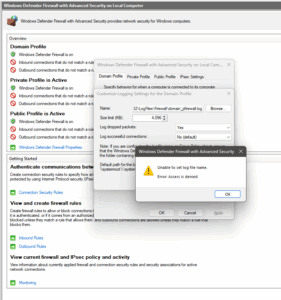
 

Checking the ‘net did not help much:

  • explicitly adding NT Service\mpssvc user and even myself to security ACL of the (default) C:\Windows\System32\LogFiles\Firewall directory and the created .log files with “Full Control” permissions did nothing
  • attempting to edit anything via the registry still worked, but the never-ending connection logs UI was still a problem

I bashed my head against this issue for the better part of some 3 hours before some memory synapses lit up…

Continue reading

10GbE and Jumbo Packets…

For the longest time, I was painfully aware that I was not utilising my 10GbE network switches and NICs to its fullest.

Having to finally sit down, build, test and optimise a software firewall using 10GbE interfaces for some organisation I volunteer at and therefore having to test it in my home lab, I finally was “forced” to sit down and “optimise” my local home lab.

An iperf3 test was not showing good numbers – bouncing around the ~8Gbps mark on a 10Gbps network.

Without fluffing around with kernel and IP stack tweaks, I was aware the easiest way to eke out better performance was to increase the MTU…

Continue reading

Misleading Windows Update Error 0x80070643 Fixes…

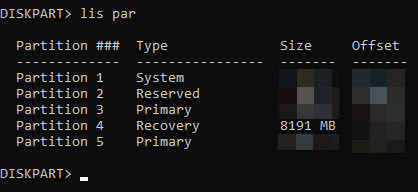
Multiple places online often suggest fixes for Windows Update error “0x80070643” by expanding the Windows Recovery Environment (“WinRE”) partition, citing a need for one at least 250MB free space.

I have an 8GB WinRE partition, so that was definitely not it.

Funnily enough, after several hours crawling through pages, I found this page, and “Fix #6” actually worked for me…

i.e. Run the .NET Framework Repair Tool

As per usual, YMMV…

RO RO RO Your Drive, Gently Up The Wall…

Read-Only

Whilst attempting to manage the drives in Windows’ Disk Management MMC (Microsoft Management Console) plug-in, I accidentally set a logical drive (a RAID1 array on which a volume hosts all Windows’ users’ “My Documents” virtual folder/alias) to “offline”.

I accidentally clicked the “OK” button on the pop-up warning, and could not find a way to cancel the action thereafter.

After the Disk Management MMC plug-in/app appeared to “hang”, I restarted the system normally (i.e. via the Windows UI).

Upon reboot, Disk Management showed the disk as “Read Only”.


Attempting The Fix(es)

Attempting all the various fixes found via Google searches were to no avail i.e.

  1. using diskpart via an Administrator command prompt to clear the readonly disk flag, or
  2. attempting to create/set a HKEY_LOCAL_MACHINE\SYSTEM\CurrentControlSet\Control\StorageDevicePolicies\WriteProtect DWORD with value “0”).

Attempting to do step #1 simply threw up the error “Diskpart has encountered an error: The media is write protected.” after a long pause.

I tried:

  • “Advanced Troubleshooting” via WinRE – and because it didn’t load the RAID drivers, the RAID1 array disk could not be “selected” in diskpart
  • clearing the readonly flag repeatedly in “Windows Safe Mode with Command Prompt” using diskpart – and despite showing the disk attributes as “Read-only : No“, rebooting normally would still see the disk “stuck” (in RO mode)


The Fix

What eventually worked was

  • reboot into “Windows Safe Mode” (as per instructions here)
    • select “Command Prompt” at the “Select Options” page
  • in “Windows Safe Mode/Troubleshooting” Command Prompt:
    • clearing the readonly disk attribute – run:
      • diskpart
      • list volume
      • select volume #
      • attribute disk clear readonly (this may take a long while – be patient)
    • setting the disk “offline
      • offline
    • quit diskpart by entering “exit”
    • optionally, run chkdsk on all loaded volumes
  • booting normally, then using “Disk Management” MMC to set the disk back to “online”


I am assuming this may not work if the boot volume was set to “read only” (but in which case I am assuming first boot will fail already).

Playing SMB’s “Who Am I”?

So, for the nth time, I found myself wondering “what name did I use to map this network drive” in Windows Explorer…

A quick Google search dug this up, so, just to document it for my own (future) reference:

wmic netuse where LocalName="Z:" get UserName /value

Where “Z” is the mapped drive letter in question…

Zoom 64-bit (x64) Offline Installer…

I absolutely abhor applications that infest your machine in the C:\Users\<blah>\AppData\<blahblah> folder, needlessly littering their “little pebbles of rabbit droppings” all over your hard drive (similar to Mac OS’s ._crap). I have administrator access and don’t want multiple copies of your program, thank you – much less mis-matched, outdated versions.

It’s hard enough to explain software interfaces to my elderly parents without having to also waste time explaining why their applications have different buttons due to different versions due to these “profile-local” installs, or why their C:\ boot drive, running on that small, purposely designated PCIe 4.0 NVMe SSD, was running out of disk space with multiple copies of the same files

Spotify and Zoom are prime examples, particularly Spotify – at least Zoom provides an offline MSI installer (which then properly installs into C:\Program Files (x86)\)…

But… although there’s a desktop x64/64-bit installer (which infests individual profile’s personal directories), there’s no x64/64-bit version of said MSI installer… But is there?

Continue reading

Breaking My Bluetooth Disconnecting-Reconnecting Cycle…

For some odd reason, some Windows 10 update or software of some sort seems to have suddenly borked my Bluetooth connection/s, whereby any Bluetooth headset and/or speaker would disconnect and reconnect repeatedly from my Bluetooth 5.0 radio (that came with the after-market Intel AX200 Wi-Fi 6/802.11ax NGFF M.2 card I installed on my PC)… I do not have other Bluetooth device types to test, so cannot say if other devices would have also experienced the same connect/disconnect cycle.

Nevertheless, I quickly found a solution: disabling power saving on the “USB hub” devices the “Intel Wireless Bluetooth” device was hanging off… (Assuming you have administrator rights/permissions on Windows…)

Continue reading