This post was in draft for a looooong time (since June 2024) – mainly procrastination and this being more of an self-indulgent rant… Now finally published because I just had another Mac vs. Windows argument recently… So, I finally filled in the remaining ~60% of the post originally drafted with headlines only (“Multiple Monitor Support”, “File System Rabbit Droppings”, “Clamshell Mode”, “Power Management Control”, “Fingerprint Touch Sensor and “PD Power Supplies”) and even added current-day info… Hopefully this helps any users transitioning to Mac, despite some points probably being out of date…
My experience with Apple has been nothing if short of atrocious.
Starting with a iPhone 6s forced upon me, so many years back, where I did not have a choice of Windows or MacOS for a work laptop (and a Intel-based MacBook Pro 13 2020 being forced upon me, followed by a MacBook Pro 2022 w/2x USB4/TB3 ports).
I’m going to start with the bad first – draw up a strong, big drink – this is going to be a loooooooong one…
I SWEAR the next time an IT engineer tries to argue Apple’s USABILITY points with me, I’ll drive the bloody MBP through his friggin skull.
The Raze
Window Menus Controls UI
Which Einstein decided to put the window’s menu controls (to close, minimise or maximise the window) separate from the individual windows? Used any ultra-widescreen lately? Realized now that your window, that you’ve placed on the far right of your ultra-wide, now requires you to mouse all the way to the top left just to get to that menu? Can I sue Apple for RSI now?
No wonder Apple dares not release wide screens (in 2026!) (and still claims to be “for media professionals”).
Multiple Monitor Support
I originally had a three 24″ monitor/display set up, and while the MBP 2022 proudly states it supported “two monitors” (can’t find the old tech spec sheet now), and I would have happily kept one monitor connected to my desktop while keeping the MBP closed in clamshell mode (see other retarded Apple problems with Clamshell mode below), the stupid laptop wouldn’t even allow that, with only one external monitor, ever (nevermind the laptop display is not on and unusable in clamshell mode).
P.S. The “new” tech spec now explicitly states one external monitor…
So finally, because Apple couldn’t work like Windows 98, from 1998, and support more than one or two monitors, I was forced to dump my budget triple monitor setup and buy a single 49″ ultra-wide at home (see “Multiple Monitor Support” above), typically split three ways for three application windows simultaneously… That leaves no space beneath for a laptop to be open, not that I need the laptop display’s screen real estate on a 49″ anyhow (which brought me back to the Clamshell hell and TouchID stupidity)…
File System Rabbit Droppings
OSX cannot contain its own crap and shits all over file systems:
.DS_Store.Trashes.Spotlight-V100.TemporaryItems.fseventsd
All of these files and folders get created – even with the supposed OS-level fix:
defaults write com.apple.desktopservices DSDontWriteNetworkStores -bool true
And if any server admins, like myself, say “f*ck Apple clients” and prevent all of these rabbit droppings being created by veto’ing these on smbd.conf and having regular cron cleanup, OSX will completely shit itself using these server shares.
Clamshell Mode
How often do you see idiots walking around with their laptops cracked open? Those are probably Macbook users…
Fighting the MBP to not go to sleep whenever it is shut is a nightmare, from requiring apps like Amphetamine (replete with stories of Apple’s stupidity), to not being able to use the TouchID…
Some even tried to tell me “but the laptop will overheat”! Other than the fact the display should now be off and useless (which actually is one of the biggest draw on battery and therefore == less waste heat when off), the vents on the MBP 2022 was also at the rear bottom… Failing all those logical arguments silencing Apple fanbois, well, then the laptop was not engineered very well compared to most Windows laptops able to run closed then, was it?
Power Management Control
So, there’s sleep mode and hibernate mode on Windows… On OSX, there’s sleep mode and… nothing else… Want your MBP to never wake up while in your backpack and risk simply exploding and killing you or just starting a fire, or simply drain it’s battery doing absolutely f*ck all, just before an important presentation at a client?
At least with Windows, when I hibernate the laptop, it stays hibernated until told otherwise (i.e. when I press the power button to turn it back on).
Yes, Apple places all your settings under ‘Preferences’… It’s not a bloody preference dammit! It’s my friggin order to you to stay off!
Fingerprint Touch Sensor and PD Power Supplies
For some stupid reason, for any sane person choosing to bring a single high-powered (e.g. 200+W) multi-port USB A+C PD-capable brick instead of the Apple Magsafe brick + separate brick/s for phone/s + tablets, then you’re SOL when you’re attempting to use the fingerprint touch sensor while the MBP Pro 2022 is charging via USB-C PD…
So, the process then becomes: unplug USB-C (which also happens to “unplug” my monitor since I run everything through one cable – which was one of the selling points of USB4 in the first place), crack open laptop (see “Clamshell Mode” above) use fingerprint, close laptop, then plug back in… And my security guys wonder why I try and force the laptop never to sleep or auto-lock.
WAIT! Let’s just go buy a TouchID USB device! No, wait! You can’t! You, can, however, pay for a complete Apple keyboard but just strip it for a FUGLY TouchID pad with a needlessly oversized motherboard… and add to the massive landfill of Apple FireWire and Lightning cables, where Apple decided to kill the Earth because “they knew better” (than the entire USB peripheral industry).
Mighty Mouse
Took forever before Apple realised its monkeys users could control more than one top-side mouse button… ‘Nuff said.
Panties In a Bunch (or the Deadlock Excuse)
I have not figured out why OSX just cannot get out of its own way… With a simple series of sub-directories and various files, the system just simply cannot compress – either with Finder’s own in-built “compress” utility or Keka (which simply just hung)…
There are no zero-byte files, no file system-level soft or hard links – be it file or directory (and therefore no possibility of recursive sub-directories)… Nothing that I could figure out that would trip Apple up…
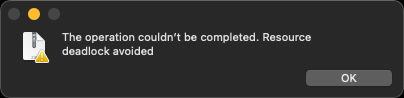
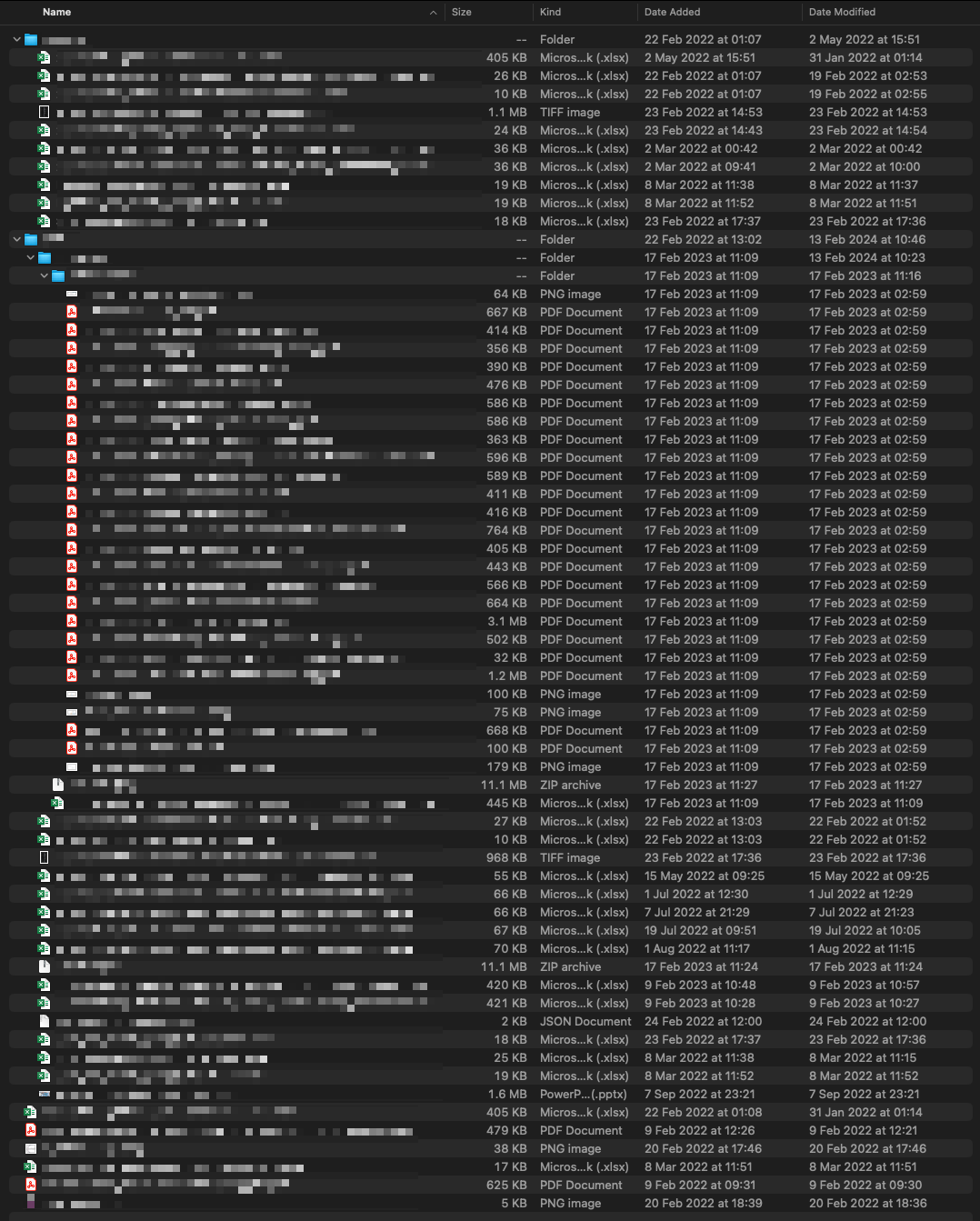
This happened occasionally with some other directories also.
In frustration, a shell/command-line tar -zcvf <whatever>.tar.gz . works – i.e. It’s you, not me…
Now, I have purposely placed this extreme last/at the bottom, as the supplied company laptop had some endpoint protection/policing software installed that may have gotten tripped up somewhere.
The Praise
There are some saving points to Apple and OSX, but they are far and few between…
- App Store
- means most apps will remain updated without individual apps having to have some “update checker + installer”, complete with whatever sense false sense of security the App Store’s governance and compliance checks provides
- App-Specific Window Switching
ALT–`is now in my muscle memory, allowing me to quickly switch windows from one app (e.g. Firefox, or some file manager)… So much so that Microsoft PowerToys now adopts it!
The Save
OK, so, complains aside – how would a MS/Windows-head, or I, survive (or now, having been able to stop using Macs since April 2025, survived)?
Sanity-Retention Apps
- AltTab (bringing Window’s ALT-TAB quick window switching to OSX)
- Sane Side Buttons (utility to use mice with forward/back buttons in browsers)
- Rectangle (utility to quickly position screens, particularly useful with full 102+ keys keyboards, OSX’s better answer to Microsoft’s FancyZones)
Useful Apps
Other useful apps I have found and used include:
- Keka (advanced file de/compression utility)
- FlyCut (historical cut/copy-and-paste utility)
- noTunes (utility to prevent Apple Music from running when BT headphones are reconnected)
- finicky (utility set as “default browser” having fine-grained control over sites and which browsers are used)
- fHash (utility for easy file hash/checksum calculations from either (i) right-click and “Open With…” from Finder, or (ii) drag-and-drop into open app
- DeskPad (a very useful “virtual display” app to allow easy “whole screen” sharing during presentations, particularly when you only have one screen available – one that ironically, I cannot find a Windows applicaiton equivalent for, although this works, but you, quite literally, can’t see what is on that virtual screen and end up “navigating” that screen by looking at the “shared window” from the teleconference software)
Keys Remapping
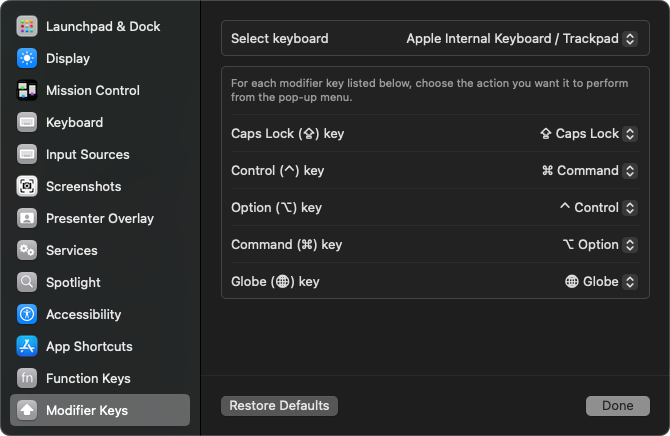
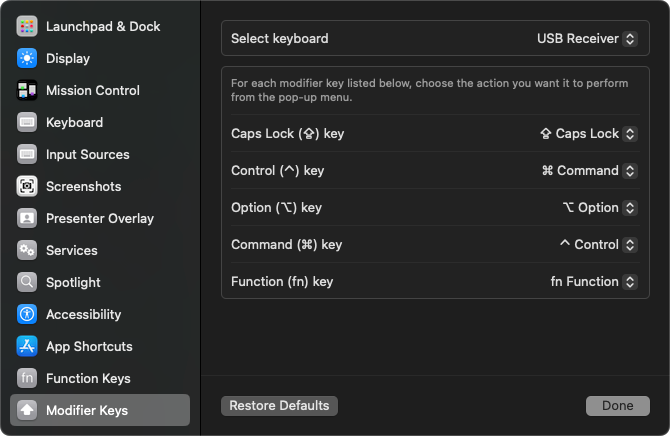
Before my company started further locked down its corporate laptops, I had the somewhat dubious pleasure of using Karabiner. Once kernel extension restrictions were in place, that failed, and I was then forced to use the OS’ built-in key remapping features… Unfortunately, Slack was the one and only application that blatantly ignored this and forced their own (default) key maps.
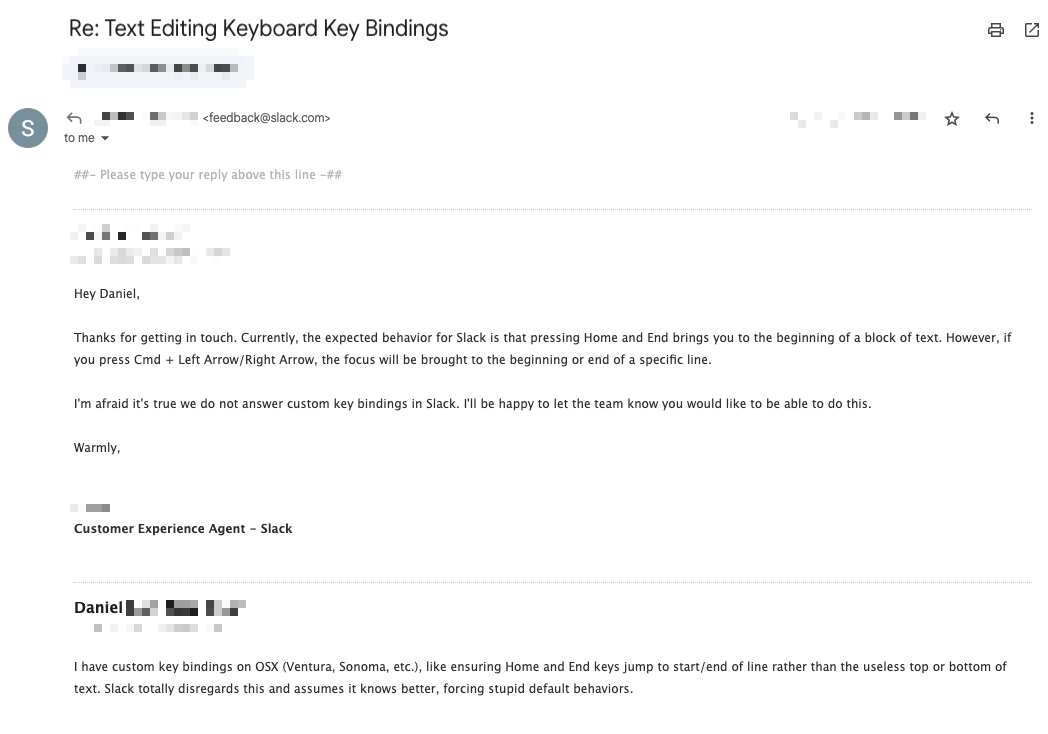
Firstly, using System settings:
-
configure your keyboard function keys
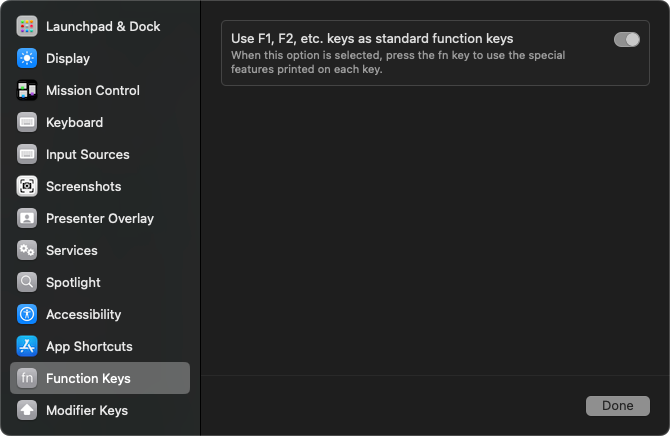
-
configure your keyboards with changed modifier keys
-
laptop/internal keyboard
-
external keyboard
-
-
set custom key bindings (unfortunately, Slack is the one app that blatantly ignores these settings)
-
create
~/Library/KeyBindings/DefaultKeyBinding.Dictas follows (and see here for more ideas):{ /* Ctrl + Left */ /* "^\UF702" = "moveWordLeft:"; */ "@\UF702" = "moveWordLeft:"; /* Ctrl + Right */ /* "^\UF703" = "moveWordRight:"; */ "@\UF703" = "moveWordRight:"; /* Ctrl + Shift + Left */ /* "^$\UF702" = "moveWordLeftAndModifySelection:";*/ "@$\UF702" = "moveWordLeftAndModifySelection:"; /* Ctrl + Shift + Right */ /* "^$\UF703" = "moveWordRightAndModifySelection:";*/ "@$\UF703" = "moveWordRightAndModifySelection:"; /* Remap Home / End keys */ /* Home Button*/ "\UF729" = "moveToBeginningOfLine:"; /* End Button */ "\UF72B" = "moveToEndOfLine:"; /* Shift + Home Button */ "$\UF729" = "moveToBeginningOfLineAndModifySelection:"; /* Shift + End Button */ "$\UF72B" = "moveToEndOfLineAndModifySelection:"; /* Ctrl + Home Button */ /* "^\UF729" = "moveToBeginningOfDocument:"; */ "@\UF729" = "moveToBeginningOfDocument:"; /* Ctrl + End Button */ /* "^\UF72B" = "moveToEndOfDocument:"; */ "@\UF72B" = "moveToEndOfDocument:"; /* Shift + Ctrl + Home Button */ /* "$^\UF729" = "moveToBeginningOfDocumentAndModifySelection:"; */ "$@\UF729" = "moveToBeginningOfDocumentAndModifySelection:"; /* Shift + Ctrl + End Button*/ /* "$^\UF72B" = "moveToEndOfDocumentAndModifySelection:"; */ "$@\UF72B" = "moveToEndOfDocumentAndModifySelection:"; }
-
If you are using Visual Studio Code and you do not set the OS key bindings as above, you could optionally set up the following key bindings in ~/Library/KeyBindings/Application Support/Code/User/keybindings.json:
// Place your key bindings in this file to override the defaultsauto[]
[
  {
    "key": "shift+alt+right",
    "command": "-cursorColumnSelectRight",
    "when": "editorTextFocus"
  },
  {
    "key": "shift+alt+left",
    "command": "-cursorColumnSelectLeft",
    "when": "editorTextFocus"
  },
  {
    "key": "ctrl+f",
    "command": "-cursorRight",
    "when": "textInputFocus"
  },
  {
    "key": "ctrl+p",
    "command": "-cursorUp",
    "when": "textInputFocus"
  },
  {
    "key": "ctrl+b",
    "command": "-cursorLeft",
    "when": "textInputFocus"
  },
  {
    "key": "home",
    "command": "-cursorHome",
    "when": "textInputFocus"
  },
  {
    "key": "end",
    "command": "-cursorEnd",
    "when": "textInputFocus"
  },
  {
    "key": "shift+home",
    "command": "cursorLineStartSelect",
    "when": "textInputFocus"
  },
  {
    "key": "home",
    "command": "cursorLineStart",
    "when": "textInputFocus"
  },
  {
    "key": "end",
    "command": "cursorLineEnd",
    "when": "textInputFocus"
  },
  {
    "key": "shift+end",
    "command": "cursorLineEndSelect",
    "when": "textInputFocus"
  },
  {
    "key": "cmd+left",
    "command": "cursorWordLeft",
    "when": "textInputFocus && !accessibilityModeEnabled"
  },
  {
    "key": "shift+cmd+left",
    "command": "cursorWordLeftSelect",
    "when": "textInputFocus"
  },
  {
    "key": "cmd+right",
    "command": "cursorWordRight",
    "when": "textInputFocus"
  },
  {
    "key": "shift+cmd+right",
    "command": "cursorWordRightSelect",
    "when": "textInputFocus"
  },
  {
    "key": "cmd+home",
    "command": "cursorTop",
    "when": "textInputFocus"
  },
  {
    "key": "shift+cmd+home",
    "command": "cursorTopSelect",
    "when": "textInputFocus"
  },
  {
    "key": "cmd+end",
    "command": "cursorBottom",
    "when": "textInputFocus"
  },
  {
    "key": "shift+cmd+end",
    "command": "cursorBottomSelect",
    "when": "textInputFocus"
  },
  {
    "key": "cmd+y",
    "command": "redo",
    "when": "editorTextFocus && !editorReadonly"
  },
  {
    "key": "ctrl+left",
    "command": "workbench.action.terminal.sendSequence",
    "args": { "text": "\u001bb" },
    "when": "terminalFocus"
  },
  {
    "key": "ctrl+right",
    "command": "workbench.action.terminal.sendSequence",
    "args": { "text": "\u001bf" },
    "when": "terminalFocus"
  },
  {
    "key": "cmd+left",
    "command": "workbench.action.terminal.sendSequence",
    "args": { "text": "\u001bb" },
    "when": "terminalFocus"
  },
  {
    "key": "cmd+right",
    "command": "workbench.action.terminal.sendSequence",
    "args": { "text": "\u001bf" },
    "when": "terminalFocus"
  }
]
