For the longest time, my Ubuntu LTS 22.04 on my (forced-to-be-updated-to) Windows 11 (replete with other networking horrors) was not working properly – I could only access the Internet from within the WSL2 container when Windows Firewall was disabled.
Despite shenanigans like attempting to whitelist a whole plethora of executables:
- C
:\Windows\System32\vmcompute.exe C:\Windows\System32\vmms.exeC:\Windows\System32\vmwp.exeC:\Windows\System32\wsl.exeC:\Program Files\WSL\wsl.exeC:\Program Files\WSL\wslservice.exe
Even attempting to whitelist the usual services suspects via C:\Windows\System32\svchost.exe like the following:
- Host Network Service
- Internet Connection Sharing (ICS)
All were to no avail. I could resolve domain names, but no traffic went out unless the host’s Windows Firewall was disabled.
I could not even see any blocked traffic from the logs, despite having the correct set up (tip: just use WFC‘s logging interface).
Searching ChatGPT and Perplexity sent me on various wild-goose chases, from changing WSL networking modes (NAT vs. “mirrored” in %USERPROFILE%/.wslconfig), to setting up dubious firewall rules referencing InterfaceAlias using New-NetFirewallRule (but which actual interface UUIDs change every boot).
In fact, there was even a proffered solution to simply let Windows Firewall ignore the WSL interface/s:
- accessing the Windows Defender Firewall with Advanced Security GUI console
- click on “Windows Defender Firewall Properties”
- under each profile (i.e. “Domain”, “Private” and “Public”), “customize” the “Protected network connections”
- uncheck/remove the appropriate WSL interface
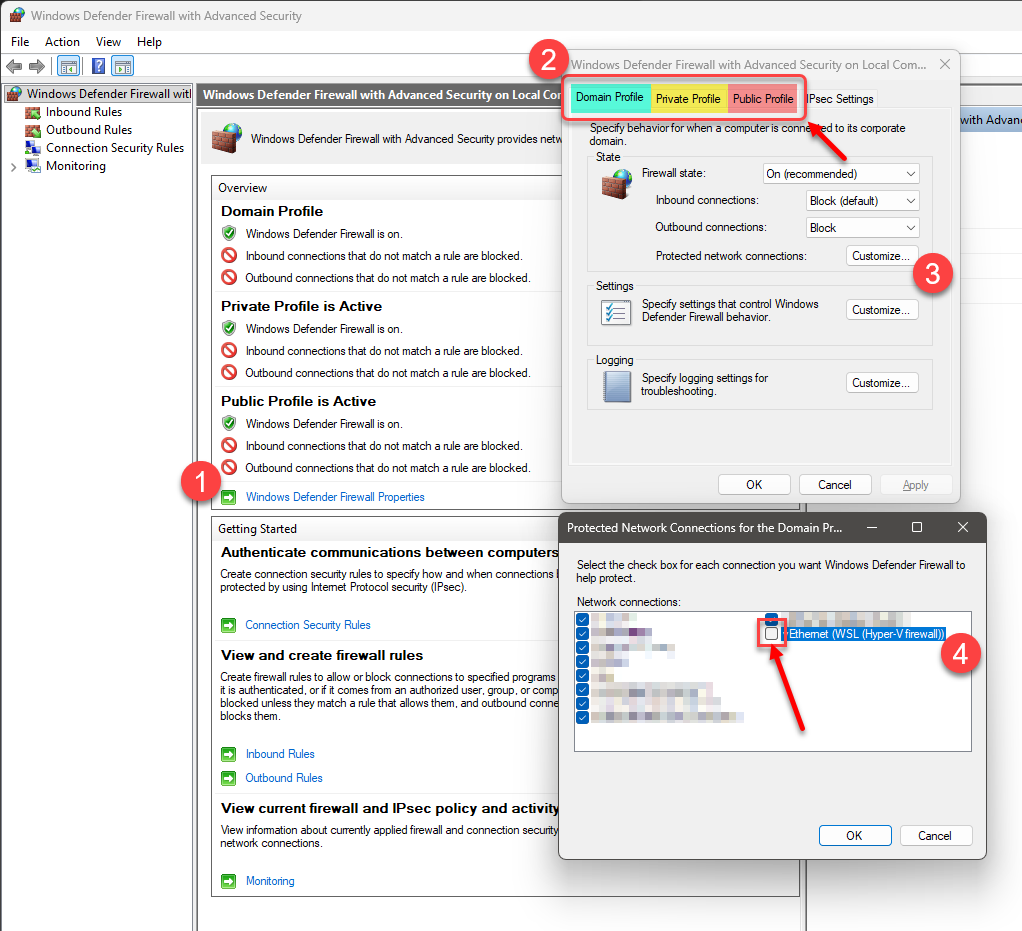
To me, that’s a bad idea…
At the end, this single command found via Google saved me:
hnsdiag reset all
Basically, it reset the whole Host Network Service.
You should try and list the before and after via hnsdiag list all…
YMMV.
2026/03/28 Update: Whereas
hnsdiag reset allfixed the NAT stuff allowing Internet connectivity from inside a WSL2 instance, Windows-sidewslcommands needed firewall rules for Internet access (e.g.wsl --list --online), so I still had to whitelist the following:
C:\Windows\System32\wsl.exeC:\Program Files\WSL\wsl.exeC:\Program Files\WSL\wslservice.exe
