OpenSSL, TLS and PKI Certificates
OpenSSL
- encode a string using AES and a password:
echo -n "<string>" | openssl enc -e -pbkdf2 -aes-256-cbc -a -nosalt
- decode an AES-encoded string (from above) using a password:
echo -n "<encryptedstring>" | openssl enc -d -pbkdf2 -aes-256-cbc -a -nosalt
SSL/TLS Certificates
Creating PKCS#12 Certificate
- creating a PKCS#12
.pfxcertificate file from a.pemBase64 encoded certificate, a.keyBase64 encoded key and a.pemcertificate chain file- run the following command:
openssl pkcs12 -export -out <output filename>.pfx -inkey <.key private key file> -in <.pem certificate file> -certfile <.pem CA chain>
- run the following command:
Installing a Certificate Authority (CA) Certificate on Windows
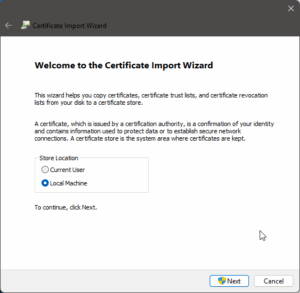
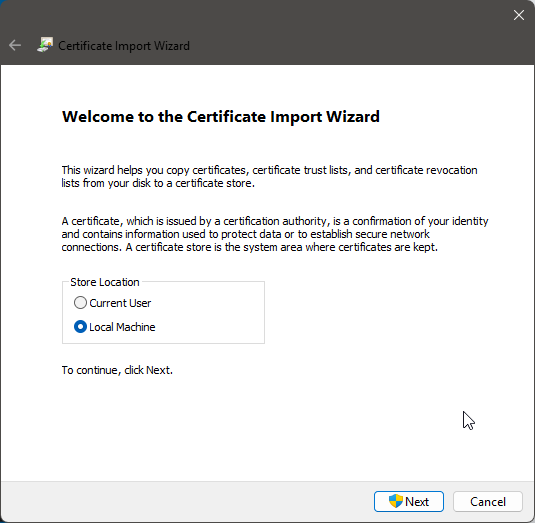
- right click on the .crt file in Windows Explorer and select “Install…” – this starts the Certificate Manager’s “Import Wizard”;
- select the “Local Machine” certificate store and click “Next”; accept/authorise any Windows UAC prompt
|
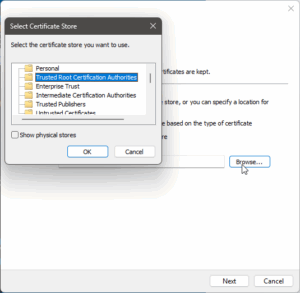
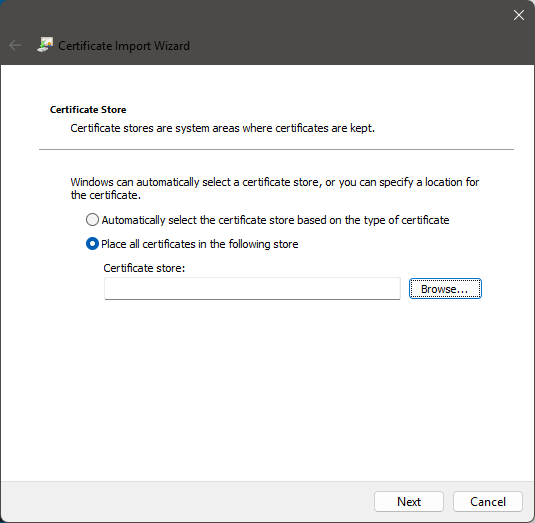
- choose to manually select the certificate store and click “Browse…”
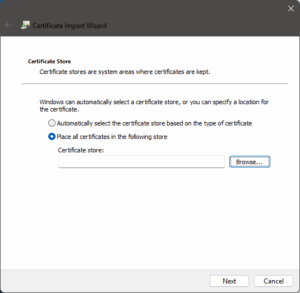
- select the “Trusted Root Certification Authority” store then click “OK”, then click “Next”
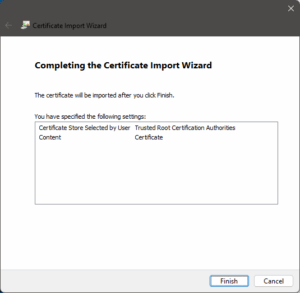
- click “Finish” to complete the wizard
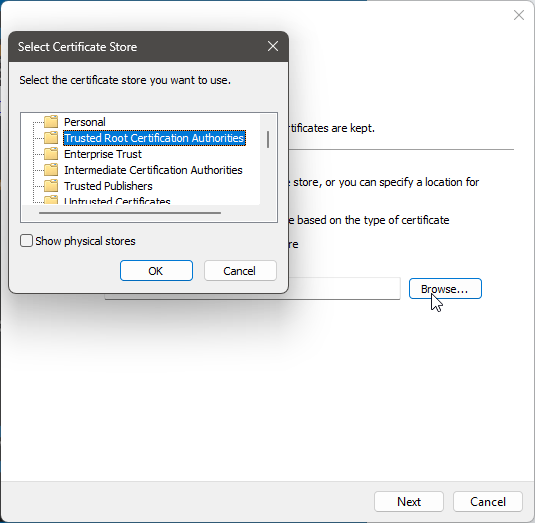
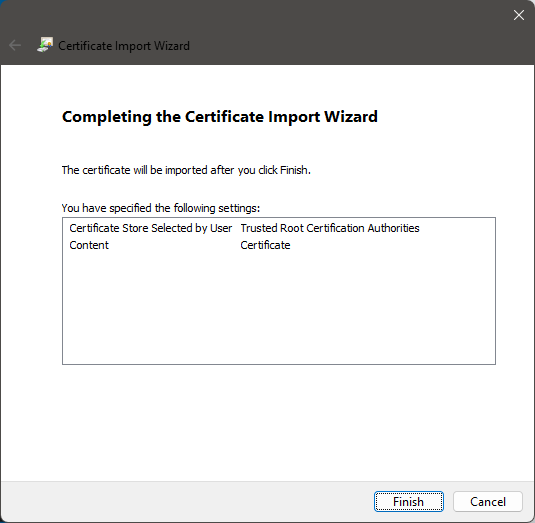
Installing a User Certificate on Windows
- right click on the
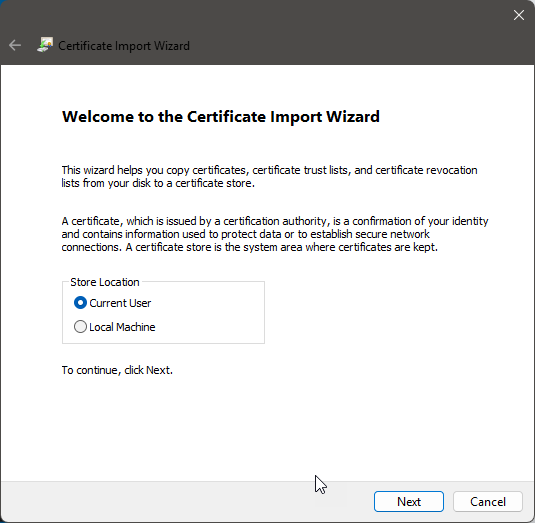
.pfxor.p12file in Windows Explorer and select “Install…” – this starts the Certificate Manager’s “Import Wizard”
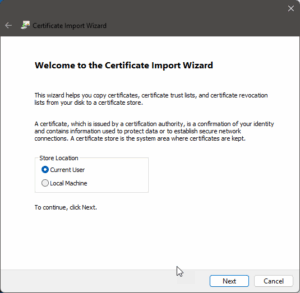
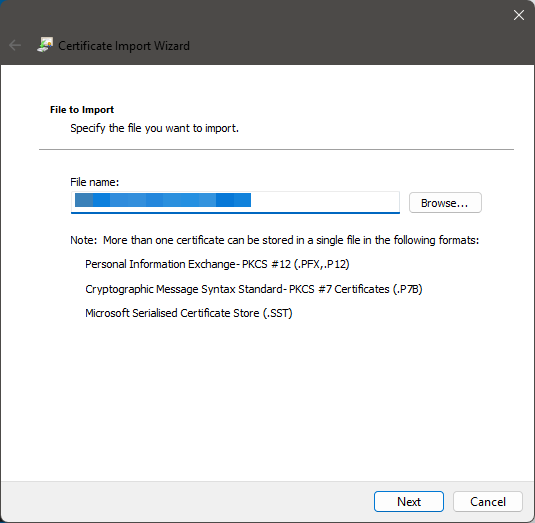
- ensure the path is correct, then click “Next”; if incorrect, click “Browse…” and select the correct certificate file to be imported
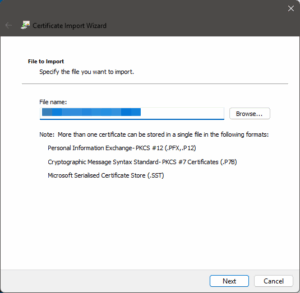
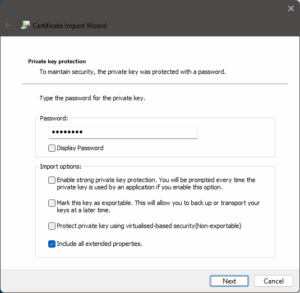
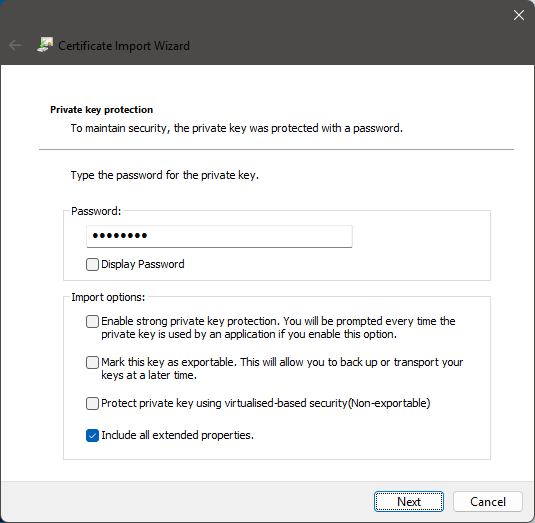
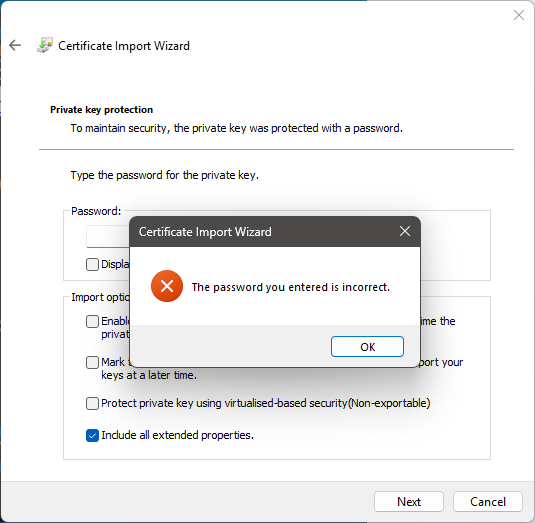
- enter a password as required (i.e. if the certificate file is password protected), ensure the “Include all extended properties” option is checked, then click “Next”
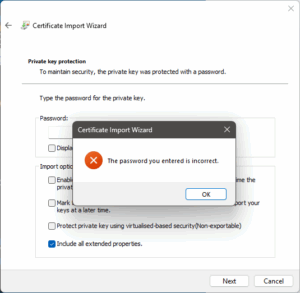
- if you did not enter a password and the file required one or you entered an incorrect password, an error message will be display – click “OK” to clear it and try again
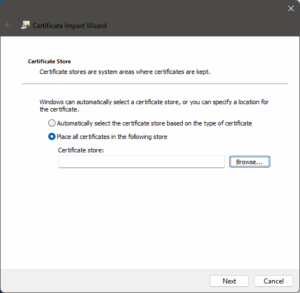
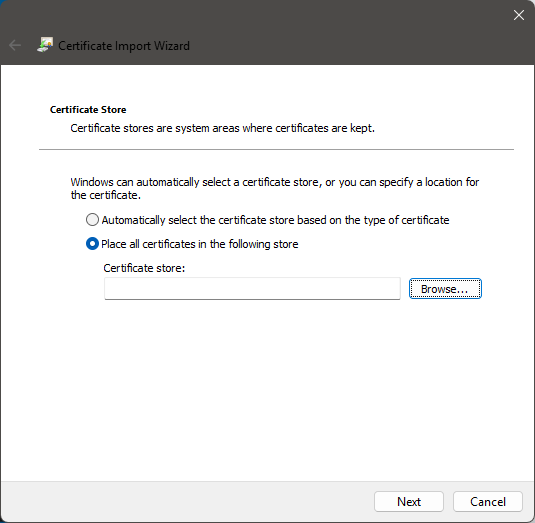
- select to manually choose the certificate store, then click “Browse…”
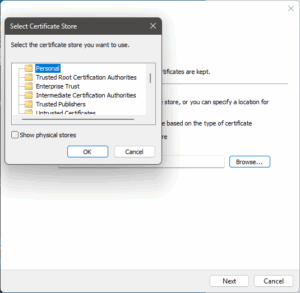
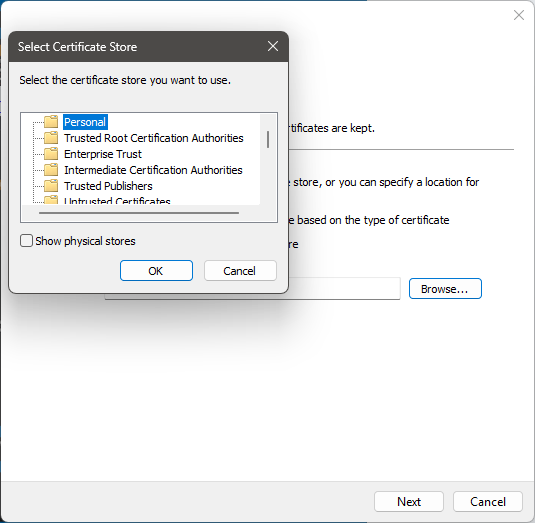
- select the “Personal” certificate store and click “OK” to exit the modal dialogue box, then click “Next” to continue
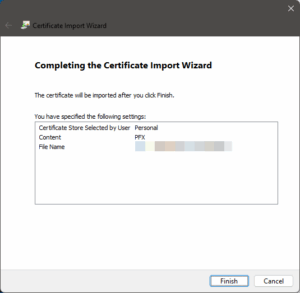
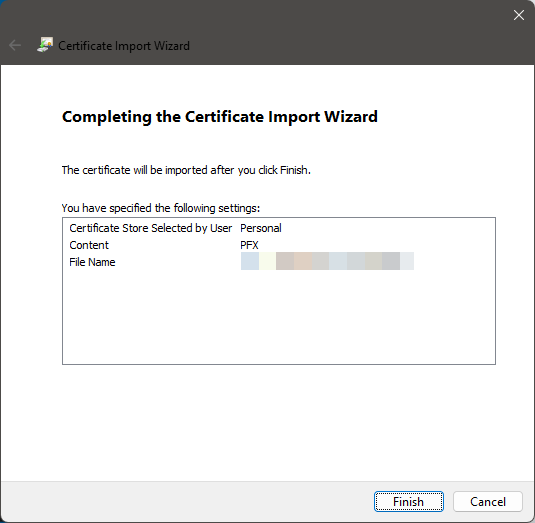
- import the certificate after checking the summary by clicking “Done”
SSL/TLS Certificates and Server Connections
The following section/s shows some commands to obtain the data as per section heading.
- grabbing certificate chain
openssl s_client -showcerts -connect <server:port>
- testing TLS version
openssl s_client -connect <server:port> [ -tls1 | -tls1_1 | -tls1_2 | -tls1_3 ]- empty result likely shows the server does not support said TLS version, example:
% openssl s_client -connect localhost:443 -tls1_3
CONNECTED(00000003)
closed
---
no peer certificate available
---
No client certificate CA names sent
---
SSL handshake has read 7 bytes and written 241 bytes
Verification: OK
---
New, (NONE), Cipher is (NONE)
Secure Renegotiation IS NOT supported
Compression: NONE
Expansion: NONE
No ALPN negotiated
Early data was not sent
Verify return code: 0 (ok)
---
- testing accepted ciphers
nmap -script ssl-enum-ciphers -p <port> <server>
- testing for EV (Extended Validation) certificates
- run the following command to retrieve the OIDs from the
Policy:echo | openssl s_client -connect www.globalsign.com:443 2>&1 | openssl x509 -noout -ext certificatePolicies
- subsequently, taking the
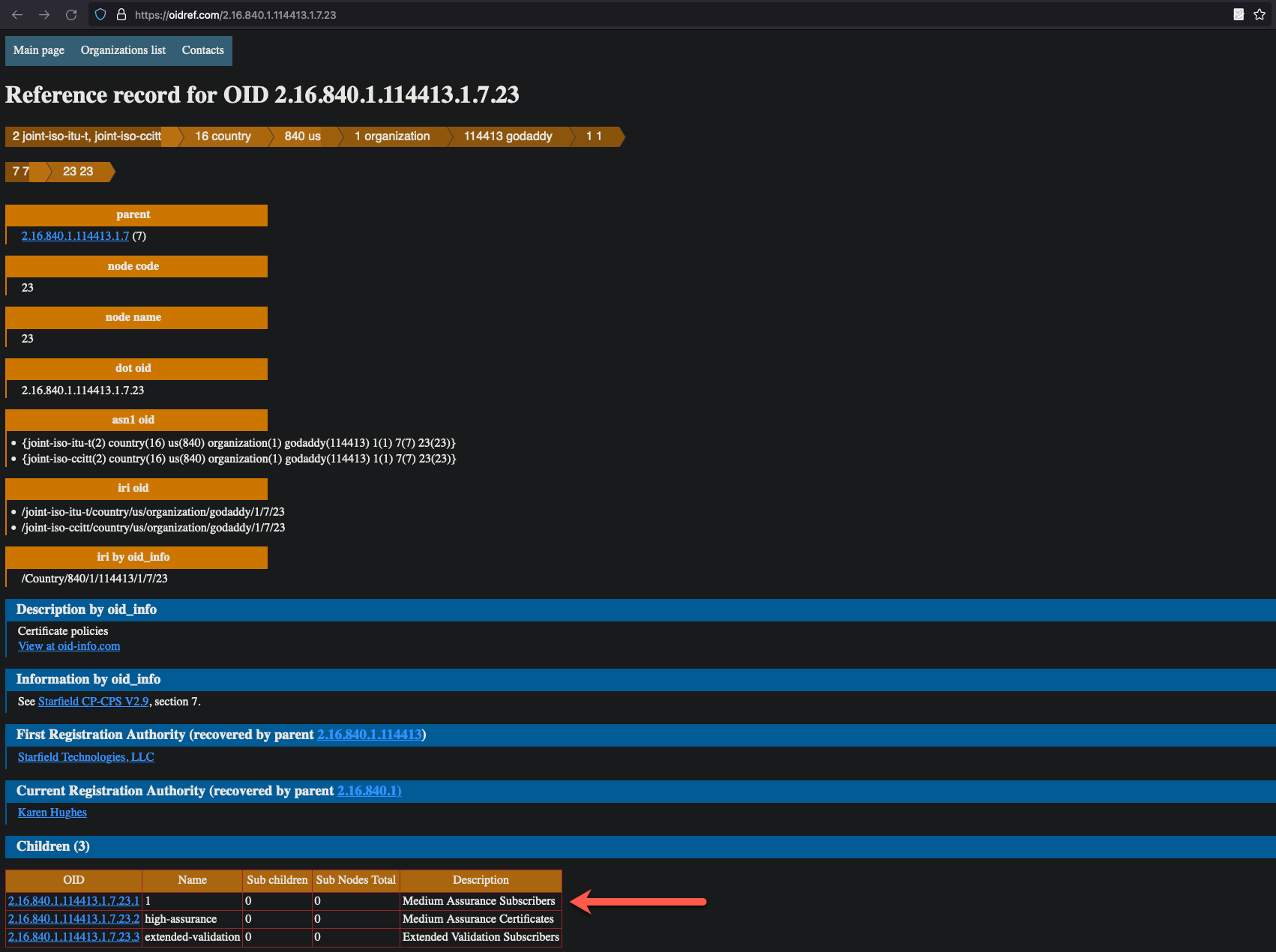
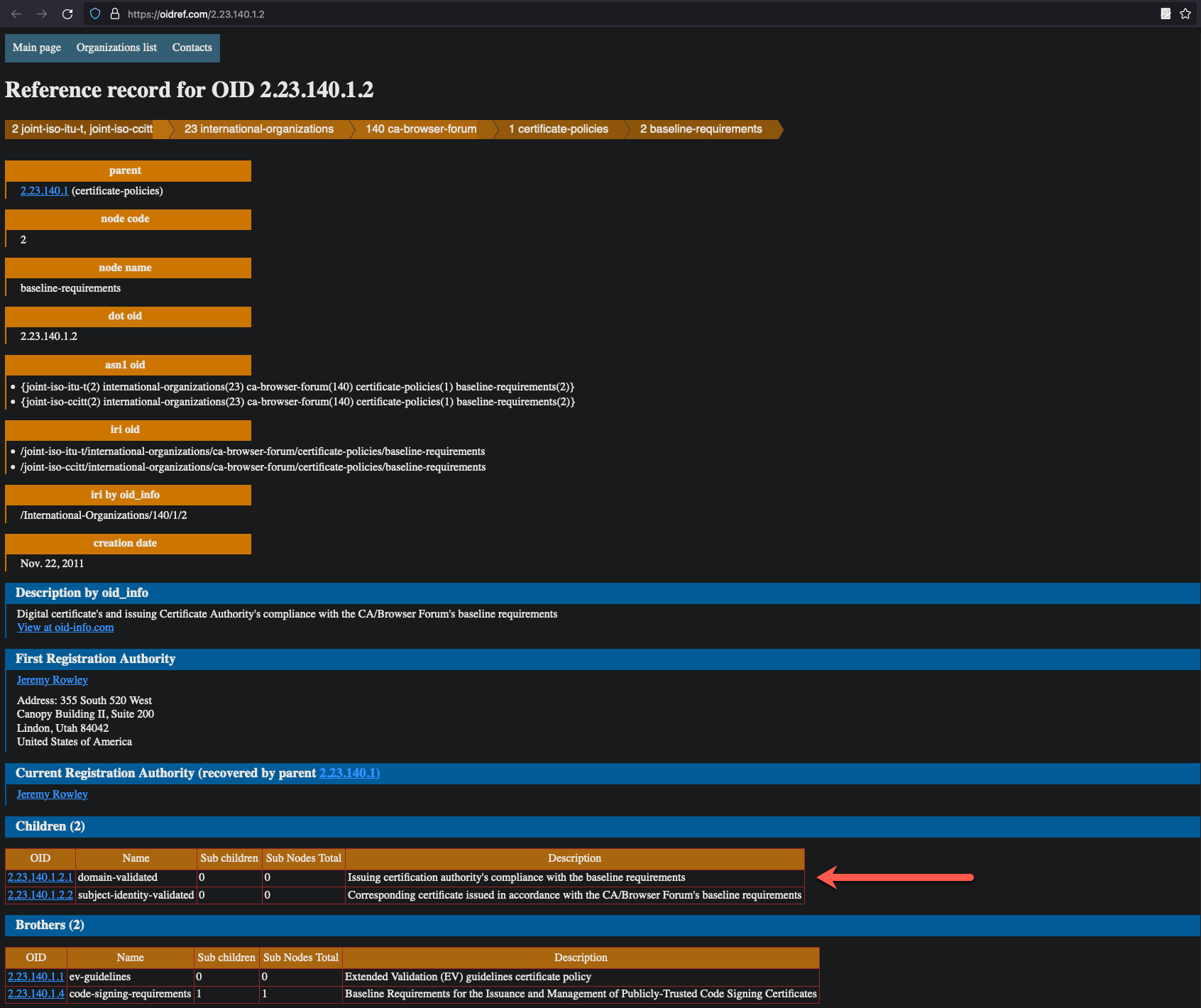
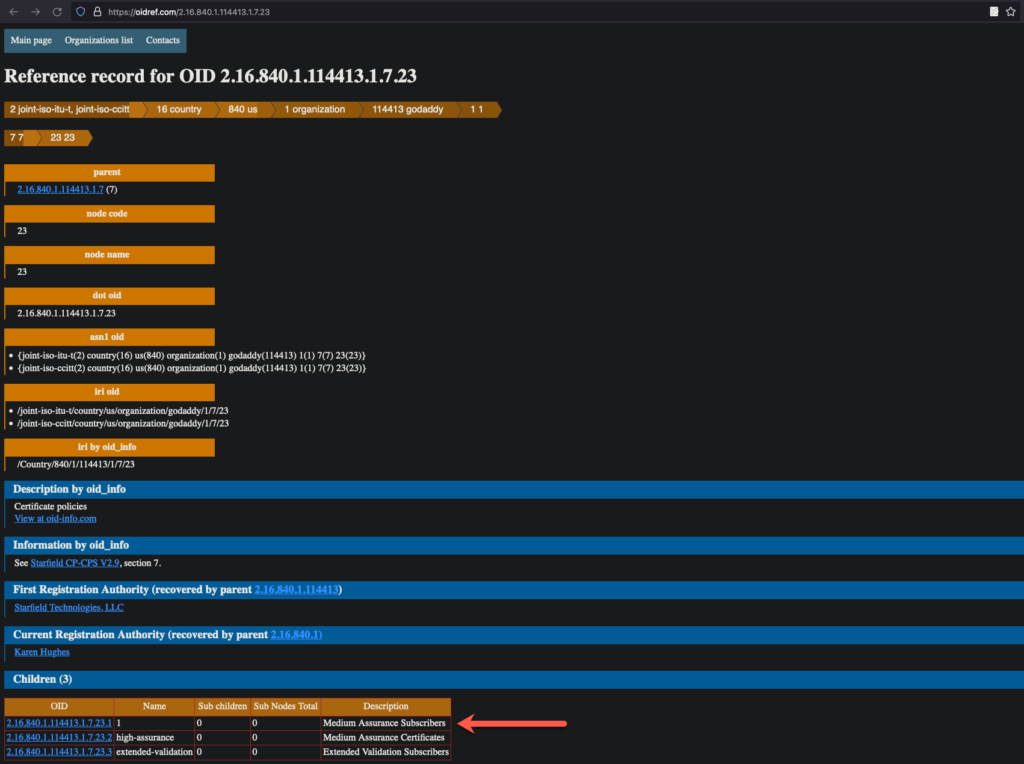
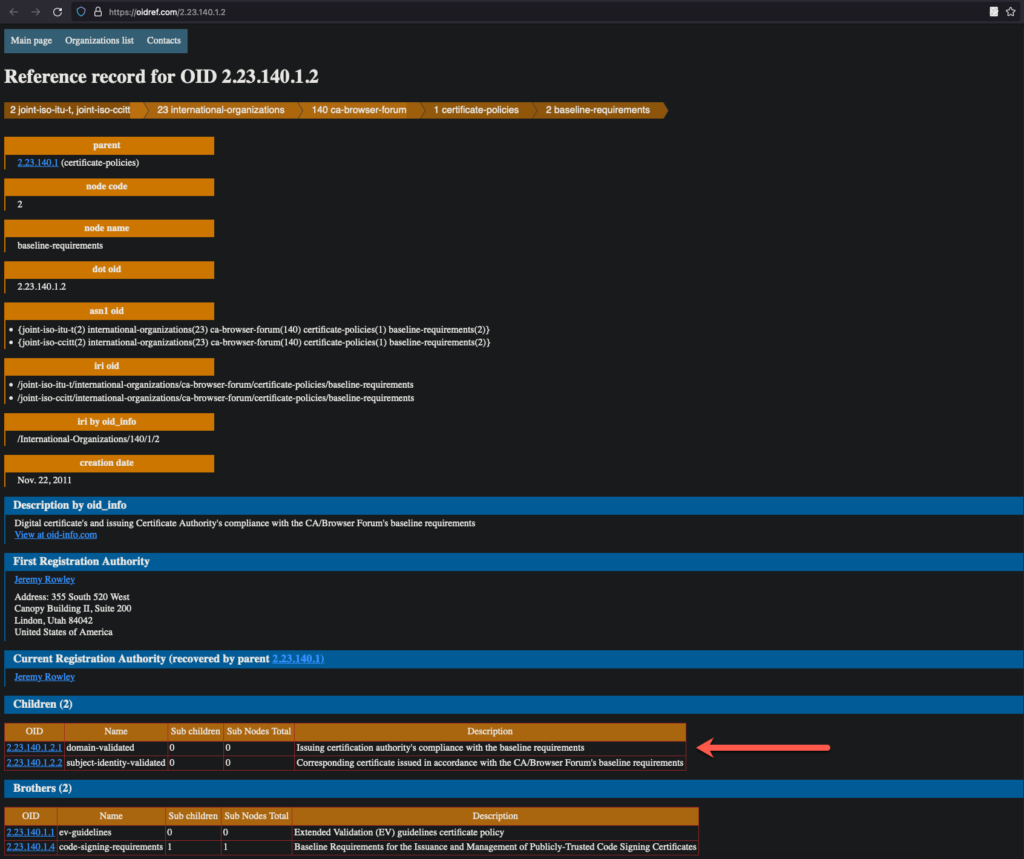
OID, check with either:http://oid-info.com/get/<OID>orhttps://oidref.com/<OID less last decimal/leaf node>
- examples:
- screenshot from https://oidref.com/2.16.840.1.114413.1.7.23
- screenshot from https://oidref.com/2.23.140.1.2
- screenshot from https://oidref.com/2.16.840.1.114413.1.7.23
- run the following command to retrieve the OIDs from the