Upgrading Ubuntu Server LTS 16.04 to 18.04 (aka GDM and x11vnc)

So, the time has come to upgrade my Ubuntu Server LTS 16.04 to the latest LTS 18.04…

It’s a straight-forwards upgrade, easy-peasy, right?

The Triumph Defeat of Hope Over Reality

Compared to what Linux used to be in the recent past, the upgrade via the stock 16.04 UI went fairly smooth…

I already knew that I had to do the standard ZFS pool upgrade:

sudo zpool upgrade <poolname>

But after the whole upgrade was done, I tried to VNC into the machine again after it rebooted… and failed.

2018/12/25 Update:

I suddenly noted that my Unifi Controller was no longer working… I later discovered that it was due to the Ubuntu LTS upgrade… Another day, another battle

Continue reading

Securing pfSense SSH2…

So, as exposing the HTTPS administration page of pfSense to the big, bad, Internet is a big “no no”, the only proper way should be to set up SSH2 and allow port forwarding.

Now, there are already articles out there telling you that using username+passwords to secure SSH2 is not the way to go… Using certificates is. However, I wanted more… I wanted both… Why is it that pfSense will only allow one or the other when sshd already allows enforcement of both?

So, once again, rolling up my sleeves, I dived into the murky waters of the pfSense shell…

Continue reading

Software Firewall…

The Problem

I have been using an Asus RT-AC68U, followed by an RT-AC87U, running Merlin’s firmware with customised firewall scripts for the longest time. However, both units had a persistent issue with some (not all) sites being inaccessible, total resets and re-configuration from scratch regardless.

Having confirmed it was an issue with the router(s) and not the firmware nor firewall rules nor server-side blocks, and not being able to find a solution, I decided to just utilise a software firewall. One that I knew well and trusted was/is pfSense.

The Other Problem

At the very same time, I finally discovered that the boot failures of my server was actually due to the PSU (read other Amazon reviews citing similar fan-spin-up-then-dies failures). Having not had time to look at the frequently (and randomly rebooting server), I finally purchased whatever SFX module that was in stock at the local “IT complex” – another Silverstone SST-SX600-G unit… Crossing my fingers that the PSU was the culprit…

2018/06/04 Update: Nope, false hope again… Server is still rebooting rather “randomly” despite using a brand new Corsair SF600

Continue reading

Ubuntu and UPS…

No, I am not talking about the delivery kind

With an existing PROLiNK 902S 2000VA online UPS providing clean power to my (aging) desktop, I thought it time to finally get a proper UPS for my NAS instead of the old, line-interactive PROLiNK PRO1200SVU that already had to have its dying battery replaced once.

Fortunately, I managed to get a PROLiNK 903S 3000VA unit.

Like the 902S and my desktop, the 903S has its USB cable plugged directly into a/the computer, in the hope of using the provided ViewPower software to monitor the UPS and cleanly and safely shutdown the host should power interruptions occur.

Unfortunately, installation was not at all simple, particularly not since the user manual has no mention of installing the software on Linux (even if the software is “compatible” with Linux, being Java-based).

Googling did not help much, with most/all the returned pages referencing the use of NUTS instead of the intended/provided ViewPower, not to mention needing to “hack” your own “configuration file”, with no guarantee that the runtime calculations are correct.

After much fumbling around, searching and testing, I managed to get it to work…

Continue reading

KVM: Installing Windows…

So, I had a spare, official Windows 7 Pro key that was never installed on the intended laptop. I was thinking that it was a good chance to install it on KVM…

So, what was supposed to be a straight-forward “new VM” + “install Windows 7” + “Windows 10 upgrade” turned into another headache…

Fortunately (and probably yet another reason to stick with the “tried-and-tested”/popular VM solutions), KVM has a “large enough” community, with lots of help online…

Continue reading

There Is No Spoon…

So, attempting to set up a virtual machine on Ubuntu now leaves me some choices (again, which is mostly a good thing).

Attempting to set up a secure Windows environment is never easy. Maybe one of the better/best ways to do this is to simply use VMs and virtualised software…

First, I need virtualisation host software. VMware ESXi and any other hypervisors are out of the question, because we already have an OS. Besides, despite being comfortable with ESXi (and also have somewhat generous “limits” on their “free” version from v5.5 and up), ESXi is pretty strict in terms of supported hardware.

Having looked at some of the “popular” ones out there, including Oracle’s VirtualBox, Citrix’s Xen, and Red Hat’s KVM (not to be confused with the common abbreviation KVM), I finally decided on KVM.

Even with VirtualBox’s ability to use “integrated mode“, I still believe that having low-level integration with the kernel and open source is more important than reliance on a specific kernel version (note: linked search only shows results from past year to show “current” reported issues as at time of search).

Continue reading

Sidetracked!

So, I saw that there were some updates, and proceeded to do everything from the shell:

apt-get update
apt-get upgrade
apt-get autoremove

Happy that everything “just works” (so far), I confidently restarted the machine… Only to find I could not SSH back into, ping, or otherwise see my server…

Using the console (i.e. locally attached KVM), I found out I was now a “victim” of this. Although the errors were different, the “fix” was the same:

dpkg --configure -a
apt-get dist-upgrade
apt-get -f install
apt-get update

As per the post linked to above, YMMV.

My Name Is Bond… eno1 and enp3s0 Bond…

With two NICs available on my motherboard (one Intel I217V and one Atheros AR8161B), whereas the product specifications warns that “teaming is not supported”, I am aware that any capable network stack would be able to handle teaming via software (disregarding drivers and assuming certain hardware acceleration features like TCP offloading is disabled).

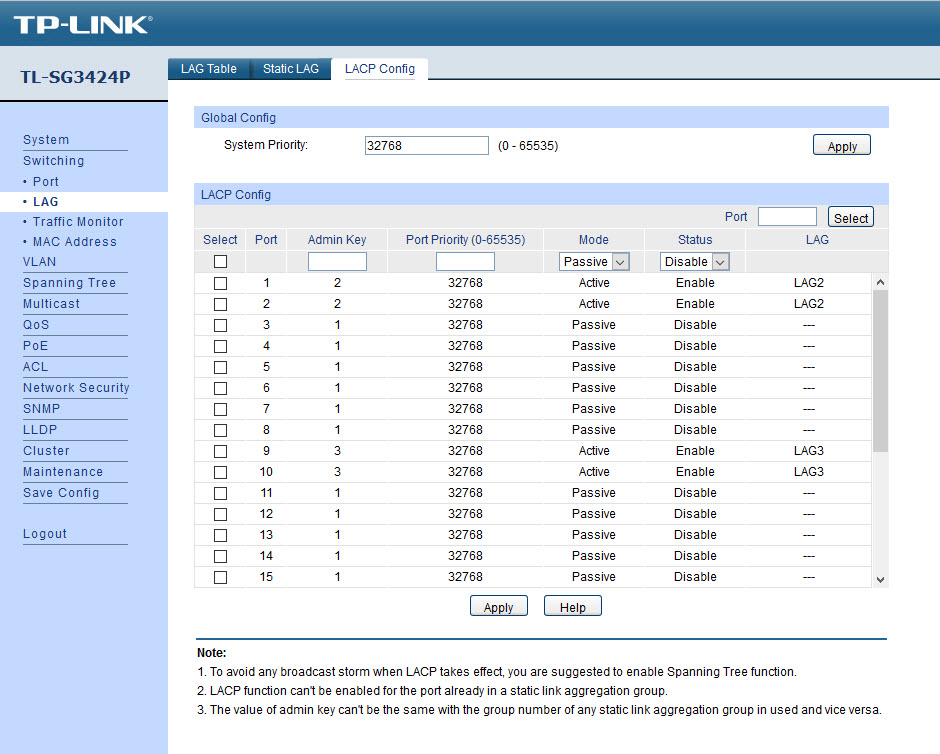
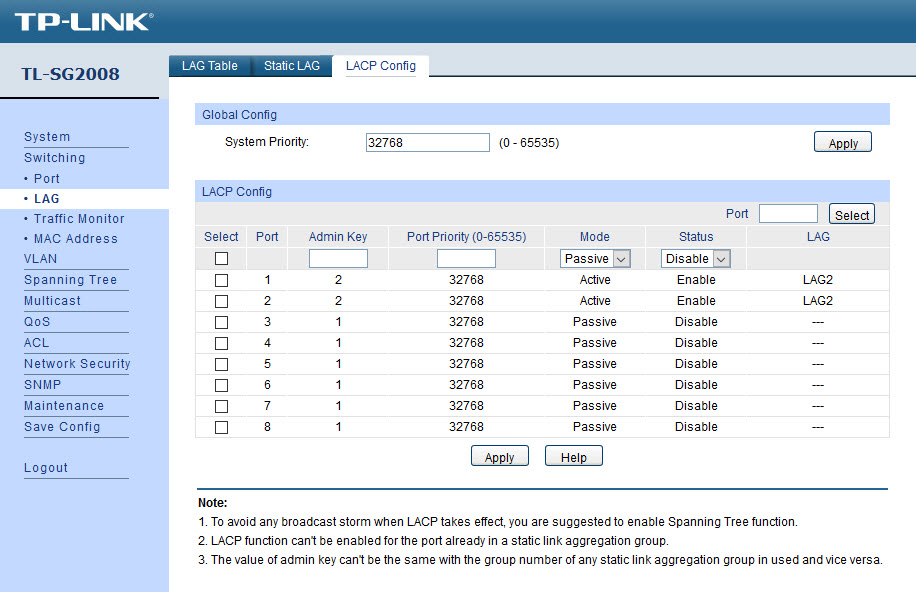
Of course, proper LACP/802.13ad (bonding mode #4) set up requires upstream networking equipment support (i.e. your network switch also requires such support). Fortunately, I happen to have a TP-Link TL-SG3424P managed switch which does support this. Obviously, this is overkill, but I highly recommend the TP-Link TL-SG2008 if 8 ports are sufficient. As I had the chance to run multiple Cat6 cable runs from the closet/store to the various rooms in my apartment when it was renovated, I could, and do, use a SG2008s as a trunk port in my study which is link-aggregated to the SG3424P.

Network Manager

Some instructions on the big, bad Internet mentioned using the Network Manager from the desktop. All that did was to mess up the settings.

Fortunately, I had backups of the /etc/network/interfaces file which I could revert the damage the Network Manager did. So, I finally did the sane thing and just disabled the Network Manager:

If You Want Something Done Right, You Have To Do It Yourself…

So, we come back to the good ol’ shell…

Continue reading

Sharing The Love…

So, the ZFS datasets have been created, and we now have to start creating the shares…

<rant>No thanks to Micro$oft, NFS support on is now only available on Enterprise versions of Windows 10, and therefore I will cannot use (the more efficient) NFS in my largely Windows environment network.</rant>

Goals

My goal was to:

  1. set up several different shares, mapping directly to the ZFS datasets
    1. this meant setting up SAMBA in a “WORKGROUP” environment
  2. allow different users to map this share on Windows, and be able to view only, or modify any objects within (add/delete/edit) according to their permissions per share

What follows is the steps required to:

  • create the SAMBA share(s) and securing it (or at least setting the correct permissions)
  • set-up the SAMBA user(s)

Note: There is a difference between Linux uid/user and gid/group and SAMBA SID/user and GID/group; within this context, I attempt to refer to the latter as “SMB User” and “SMB group” for disambiguation.

Continue reading