Updates Fartdates…
So, my Ubuntu LTS 18.04 decided to have a brain fart during a “routine” system update just past midnight on Saturday morning… Rebooted the modem, switches, VM, VM host… nada…
Wither Thou Internet…
With the ‘net down, I could not seem to see the list of update details, nor try and roll anything back… Worst yet, I was actually doing work (which needs a ‘net connection)… So the troubleshooting ensued…
Troubleshooting using my work laptop via my handphone hotspot was no fun… So, four-and-a-half hours later, I retired, disgruntled at not solving the issue (and also having to do three rounds of laundry, get woken up a mere 15 minutes later by my young daughter who wet her bed, and get awakened again 30 minutes after that due to one inconsiderate neighbour’s noisy pet birds – but that’s a totally different story and I digress)…
Saving Grace…
Just a few days ago, I had applied for a free 12-month trial from TPG (Singapore’s fourth telco), so at 10AM in the morning, I dragged myself out of bed, went to church, and then picked up the TPG SIM card… All this to use in a Huawei E3372-607 USB LTE/4G modem (together with a high-gain indoor antenna) purchased nearly two years ago that was meant to fix this exact situation (i.e. be a back-up Internet link).
The Cleanup
The entire wired network was on the fritz, but the wireless network (with the pfSense VM directly connected via LACP to my Ubiquiti Unify AC HD WAP) seemed to work (but obviously without a WAN connection), so I started on the USB stick:
- plug in the SIM card into the USB stick modem
- plug the USB stick modem into a laptop running Windows
- run the “setup” from the emulated disk/CD-ROM drive that is part of the USB stick
- the RNDIS device should now show up in your Windows Device Manager
- browse http://192.168.8.1 and configure the APN/s as required
- connect the external antenna
- disconnect the external antenna and throw it away when you do not see any change in the “reception bars” on the status page
- test Internet connectivity
Furthermore, there were other various connectivity issues exhibited by my pfSense VM now, such that only the host could talk to the VMs and vice-versa, but not other LAN to/from VMs… Checking the firewall rules (ipchains and ebtables) did not turn up anything…
However, various searches across the Internet showed up some changes were needed (although I believe only the 2nd was what “fixed” things):
/etc/network/interfaces- remove the various IFs from the
bond-slavesdirectives under the bondN definition - add
bond-updelayandbond-downdelayto prevent over-reactive bonded connection changes/fail-overs/fail-backs
- remove the various IFs from the
/etc/sysctl.conf- disable IPv6 RAs and self-allocations
- disable
netfilterfor bridged traffic
- allow bogon networks on pfSense IFs that are using DHCP
- see if your pfSense firewall logs drops traffic from
0.0.0.0:68to255.255.255.255:67– if so, then you will need to disable the no bogon networks selection
- see if your pfSense firewall logs drops traffic from
2019/04/04 Update: Persisting the /etc/sysctl.conf changes (point #2 above) is not easy… It appears that procps, when processing the sysctl.conf during start-up, does so when certain modules are not yet started, hence some kernel settings from /etc/sysctl.conf are simply over-written later when the module finally loads… <sarcasm>Brilliant!</sarcasm>
The kicker here is that various sites around the ‘net claim that using /etc/rc.local to call procps again (and ensuring the file has the correct 755 permissions) does wonders. Unfortunately, whereas running /etc/rc.local from the command line seems to work, it appears to still be run too early in the boot process… The end result is a need to run a cron job with a sleep delay (see comment #18). My /etc/cron.d/sysctl-rerun cron job script has the following contents:
#re-run sysctl --system at boot
@reboot root sleep 60 && /sbin/sysctl --system && echo "`date +\%F` `uptime`: sysctl cron'd">>/var/log/sysctl-cron.log
As a side-effect, I have an “effective” log of when the system reboots, and proof of the sleep (plus/minus the granularity).
To test, run this as su (or prefix with sudo): sysctl -a 2>/dev/null|grep "net.bridge.bridge-nf-call".
Read the next update for a better, less “hacky” solution.
2021/09/03 Update: After having to set up a new server w/Ubuntu LTS 20.04 and having to re-do everything, I came across the a smart udev solution:
- create your
/etc/sysctl.d/nn-disable-bridge-netfilter-calls.conffile:
net.bridge.bridge-nf-call-ip6tables = 0
net.bridge.bridge-nf-call-iptables = 0
net.bridge.bridge-nf-call-arptables = 0
- create a
udevrule that kicks in when the br_netfilter module loads, e.g./etc/udev/rules.d/nn-disable-bridge-netfilter-calls.rules:
ACTION=="add", SUBSYSTEM=="module", KERNEL=="br_netfilter", RUN+="/sbin/sysctl -p /etc/sysctl.d/nn-disable-bridge-netfilter-calls.conf
- and just in case ufw is used, add in some extra bits to be sure (in your
/etc/ufw/sysctl.conffile):
net/bridge/bridge-nf-call-ip6tables = 0
net/bridge/bridge-nf-call-iptables = 0
net/bridge/bridge-nf-call-arptables = 0
The Fix
Once the USB stick is confirmed to be working in Windows, and the pfSense VM is confirmed to be “all OK”, move the USB stick over to the Linux host (my Ubuntu LTS 18.04 box in this case).
From there, I am able to confirm, with lsusb, that the modem is identified:

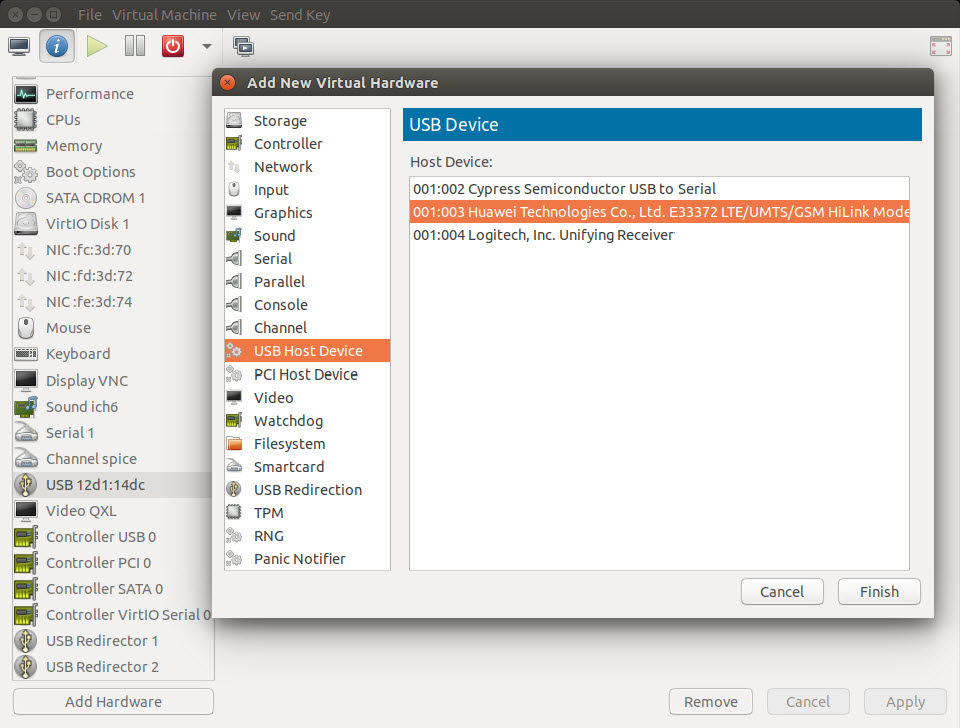
Subsequently, adding the USB device as a “passthrough” to the VM is easy:
- add a USB Hub Device to the VM, choosing the USB Modem:
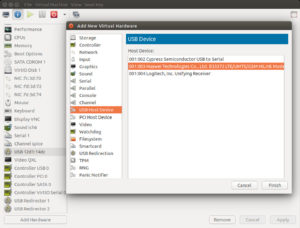
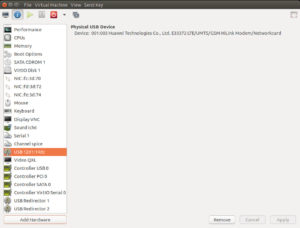
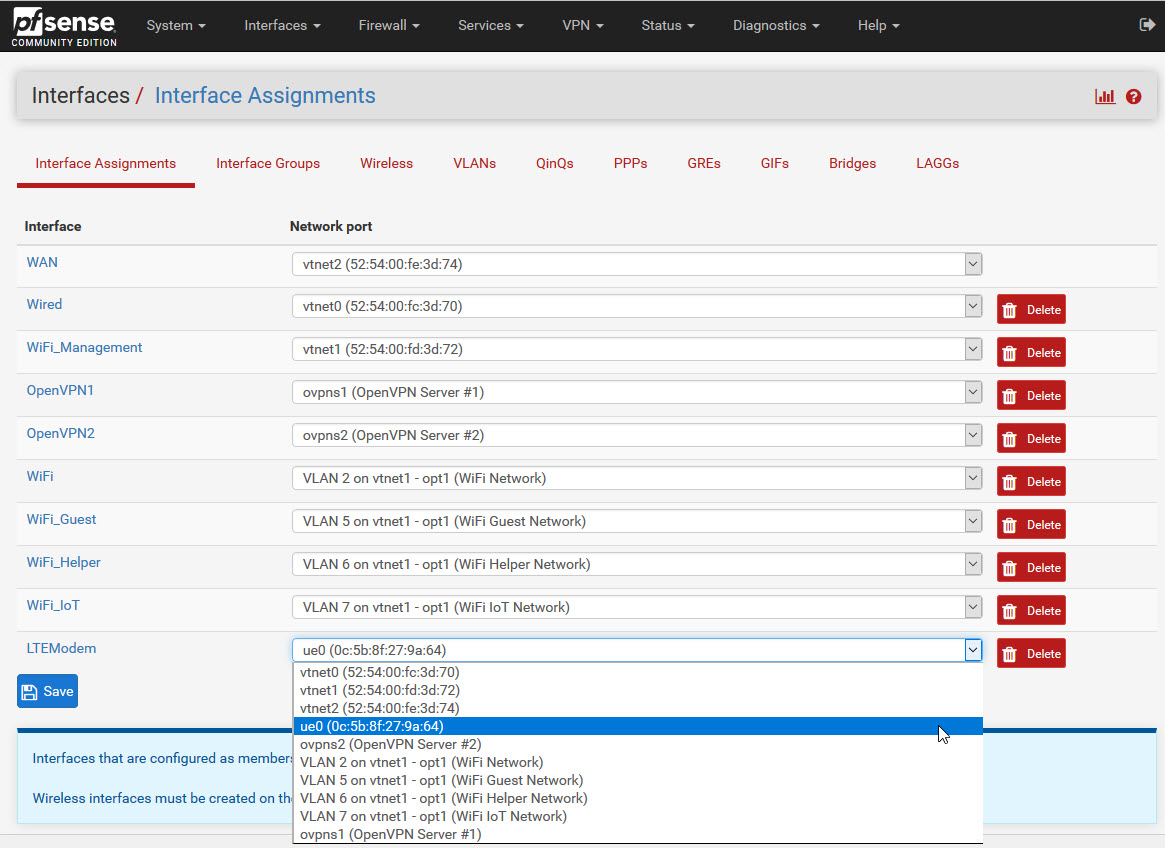
- add an Interface (Interfaces > Assignments) and select the
ue0device:
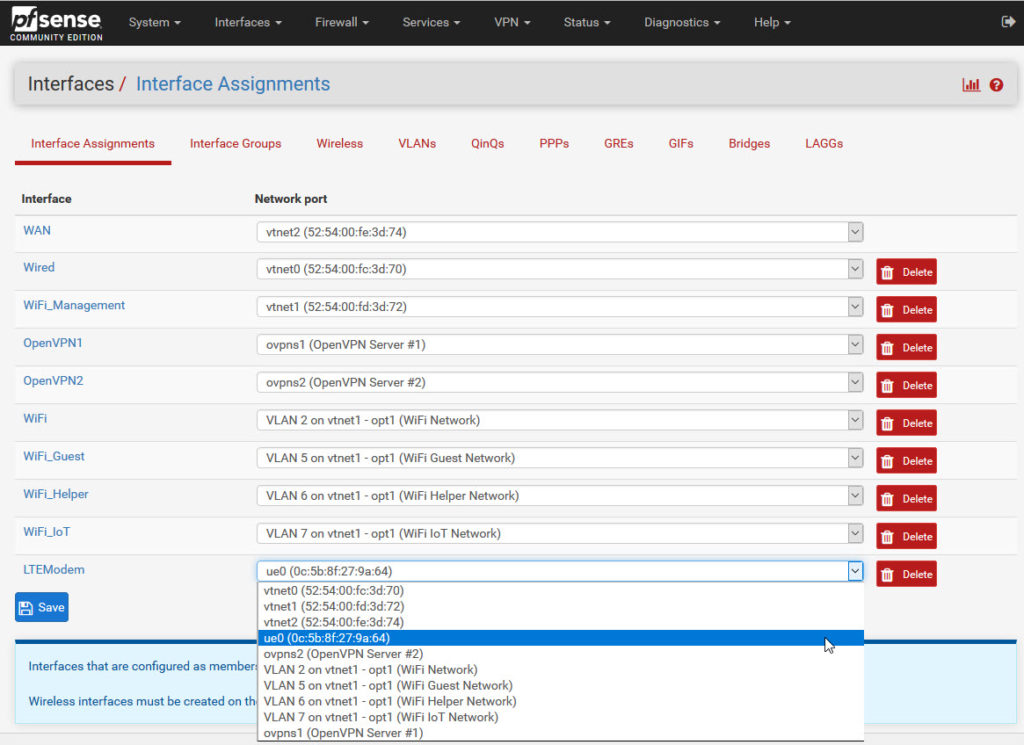
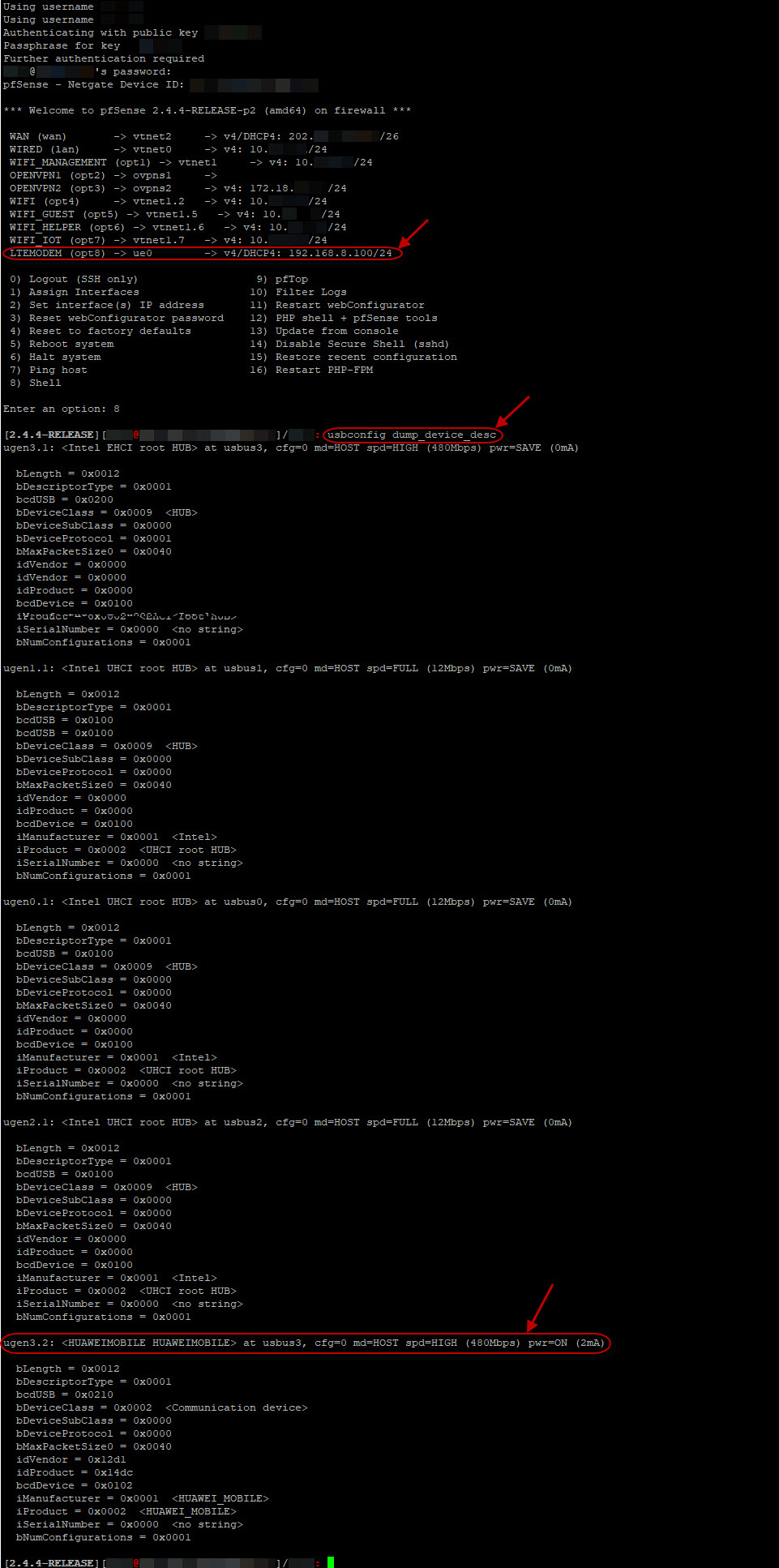
- check the configured interface and also the device by running
usbconfig dump_device_descfrom the shell:
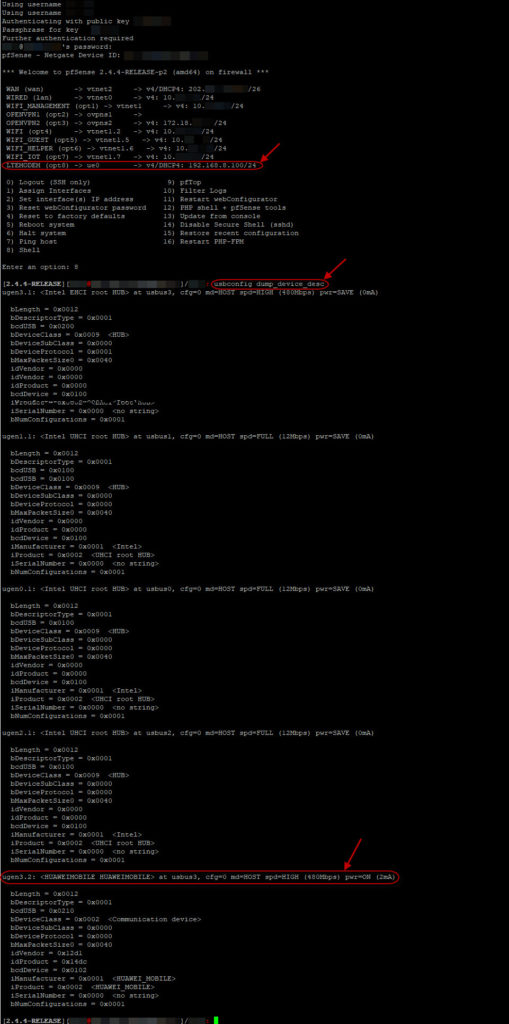

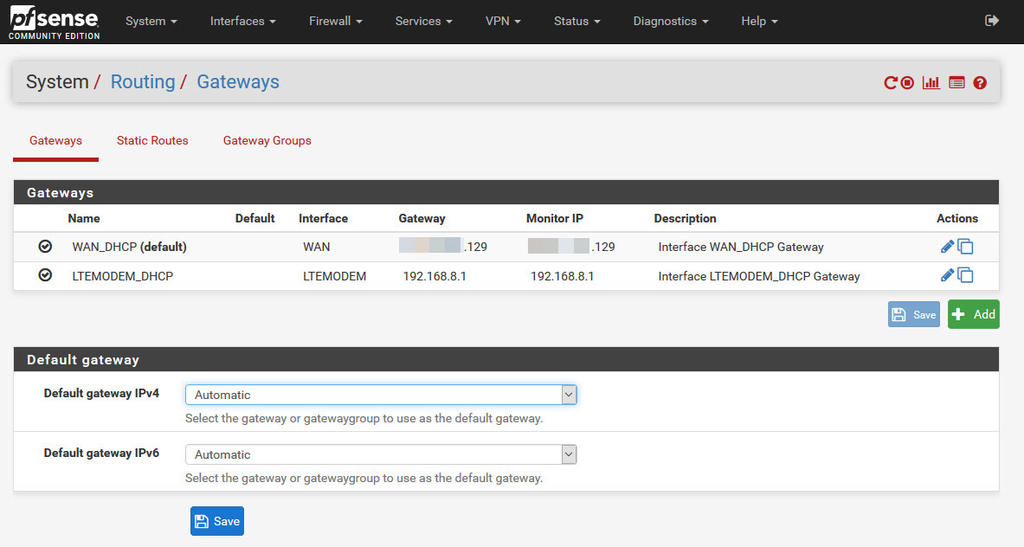
After that, there is also the need to specify the gateway group:
- access the System > Routing > Gateways page:
- navigate to the “Gateway Groups” tab and add a new gateway group:
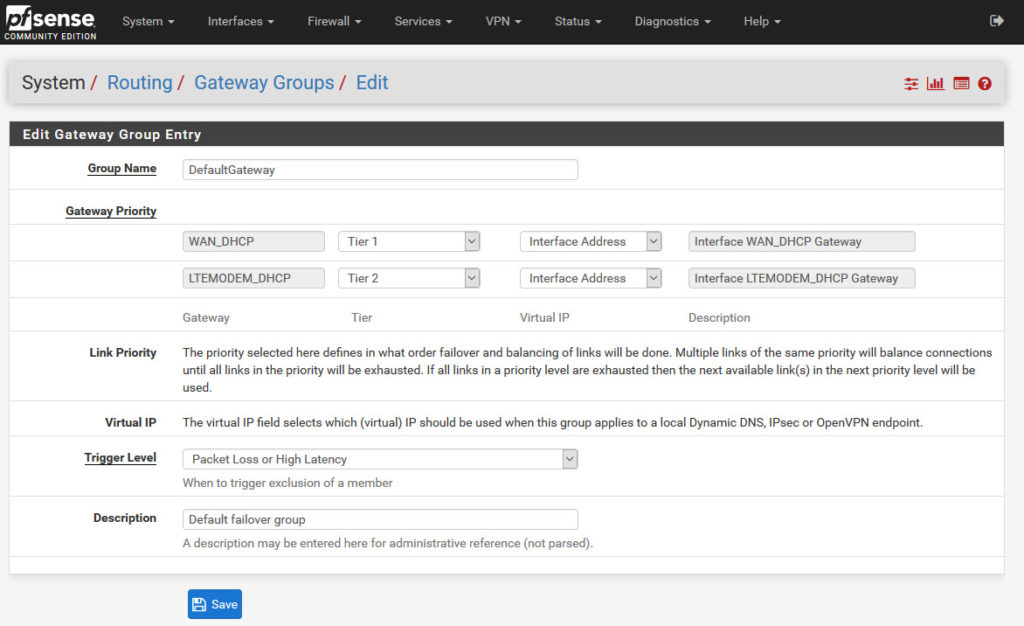
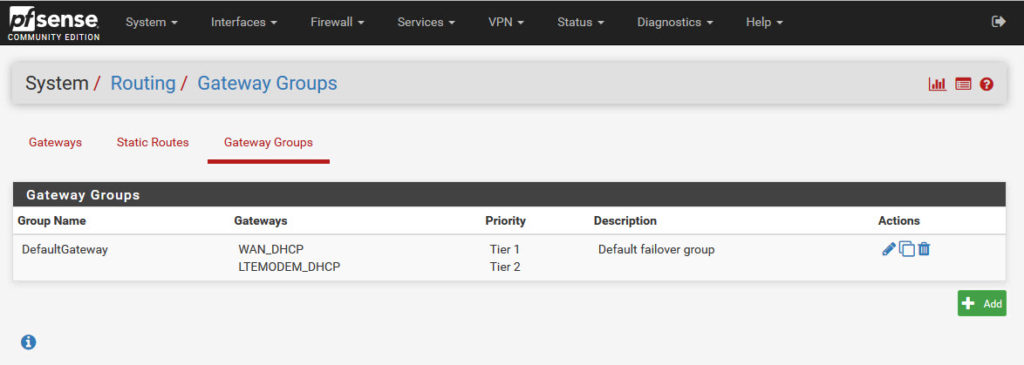
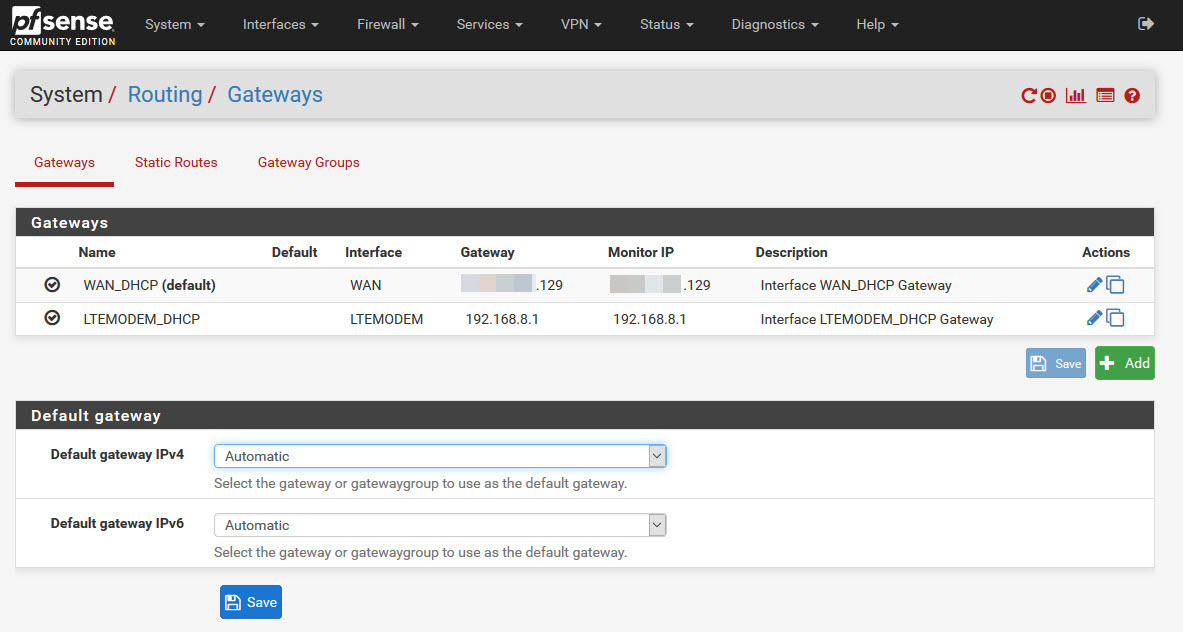
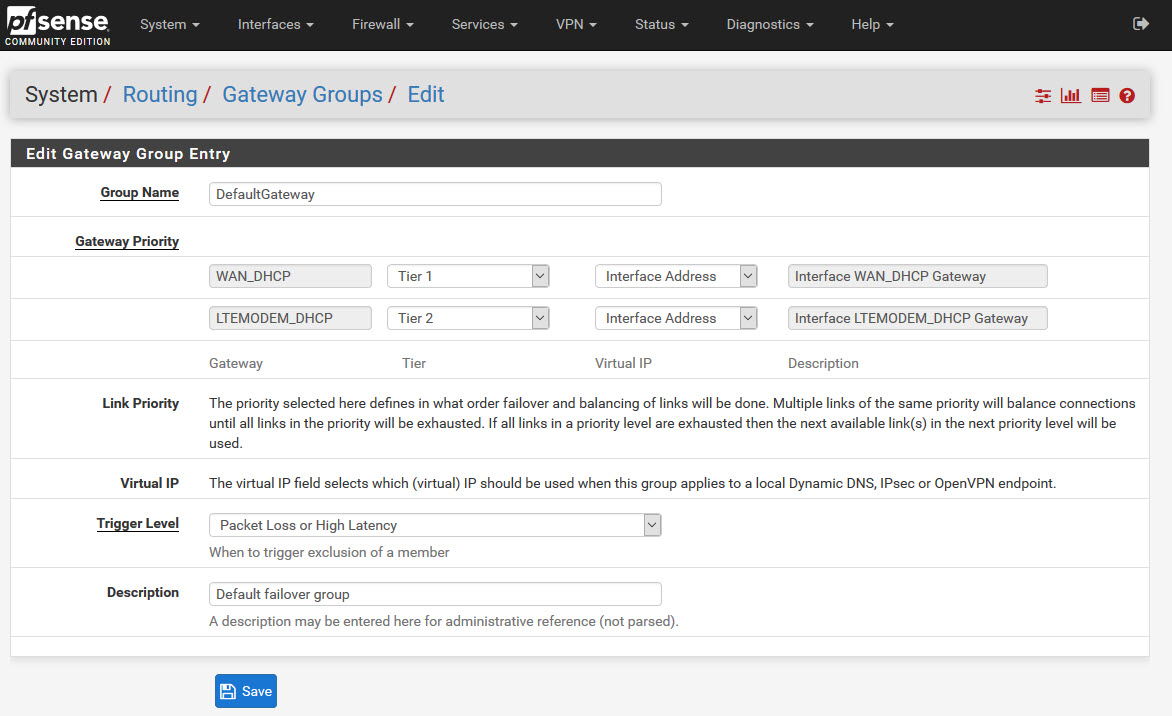
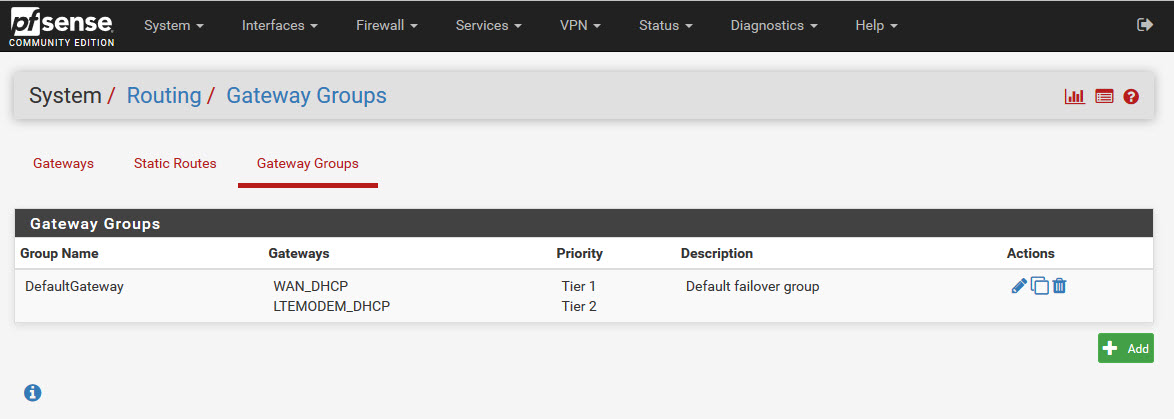
Now, the process is completed and the backup link should be working.
Caveat
The Huawei USB modem is running in “Hilink” mode, meaning that pfSense ue0 interface is actually being NATted (the IP address is 192.168.8.n). This means two things:
- a possible clash if you are running any 192.168.8.n subnet on your network
- double NATs may cause issues with incoming traffic (and rules)
I will eventually be “hacking” the USB modem to remove the NATting capabilities and will provide updates here.
